
You are here:
Calculating Guidance Tiers for Pricing Guidance
Use CRM Analytics to filter products by name, quote line quantity, quote status, and quote creation date on the Create Pricing Guidance page. After Salesforce CPQ evaluates the median Total Discount field, you can define high, medium, and low recommended discounts. (Salesforce CPQ Managed Package)
Required Editions
| Available in: Salesforce CPQ+ Summer ’19 and later for users with a CRM Analytics Plus license |
When you open the Create Pricing Guidance page, the Guidance Graph shows you an overview of pricing guidance discount percentages based on quote line quantity ranges. For a detailed look at discount values, click Guidance Tiers.
Let's review a sample Guidance Tiers page.
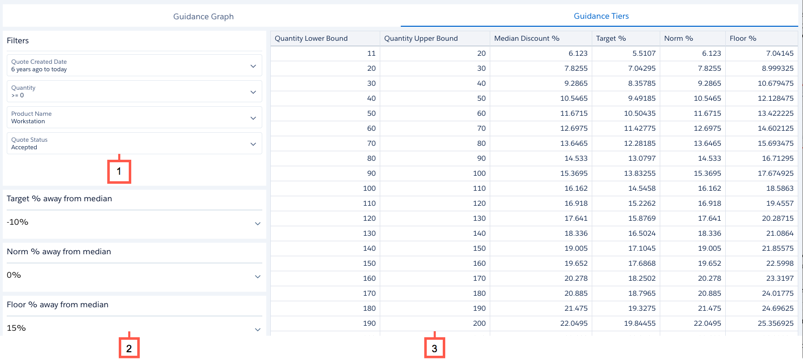
The Filters section (1) lets you define parameters for the quote lines you want to evaluate. In this case, the pricing analyst is filtering quote lines for products named Workstation, with quantities of 0 or greater, on accepted quotes created within the last 6 years. Salesforce CPQ supports only the predefined fields as filter options.
The Guidance Tiers section (2) lets you define percentages for your target, norm, and floor discounts. Each discount is a percentage of the median discount percentage for a quantity range. For example, the pricing analyst sets the target discount as -10% from the median. If a quote line quantity’s median discount is 12%, the target discount is 10.8%.

The Pricing table (3) shows your median discount and quantity ranges based on your filters, and your suggested discounts based on your Discount Ranges. When you update a filter or discount range and apply the changes, Salesforce CPQ updates the Pricing table accordingly.
- Each row represents one pricing tier for your pricing guidance. When a sales rep loads pricing guidance in the quote line editor, Salesforce CPQ shows them the suggested discounts for the pricing tier that contains their quote line quantity.
- Discounts apply up to, but not including, the value in the upper bound column. For example, the first row applies to quote line quantities of 11 through 19, and the second row applies to quote line quantities of 20 through 29.
- Salesforce CPQ initially creates tiers so that each tier evaluates at least 30 total quote lines. The quote line with the lowest quantity sets the Quantity Lower Bound and the quote line with the highest quantity sets the Quantity Upper Bound.
- If the total number of evaluated quote lines is below 30, Salesforce CPQ includes them all in one tier. If there's an overlap between tiers, Salesforce CPQ combines their quote lines into one tier. For example, during initial evaluation, your first has 30 quote lines each with a quantity of one. The second tier has 23 quote lines with quantities of one and two. Since there's overlap of quantity-one quote lines, Salesforce CPQ combines them into one tier that evaluates 53 total quote lines. The tier has a lower bound 1 and an upper bound of 3.
- The median discount represents the median of Total Discount field values for all quote lines in a quantity bound range.
