Edit the Field Mapping for a Data Integration Rule
To help ensure that your records and reports are accurate, check the field mapping when
you activate a data integration rule. Some Lightning Data rules let you keep or overwrite field
values when new data is available.
Required Editions
Available in: Professional, Enterprise, Performance, and
Unlimited Editions
User Permissions
Needed
To edit field mapping:
Customize Application
The data service provider determines a rule’s default field mapping.
In Setup, use the Quick Find box to find Data Integration Rules.
Select the rule you want to look at, and then click Edit Field
Mapping.
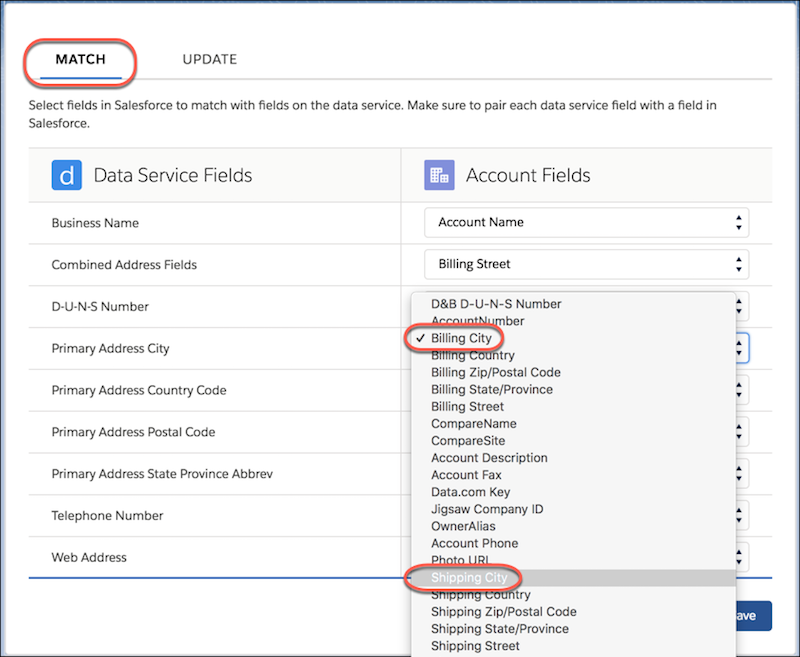
On the Match tab, look at the fields used to match your records to fields in the data
service. If a data service field isn’t correctly mapped to the standard object, select a
different standard object field.
For example, suppose that the data service field City is mapped to the account field
Billing City, but you use Shipping City in account addresses. Change Billing City to
Shipping City.
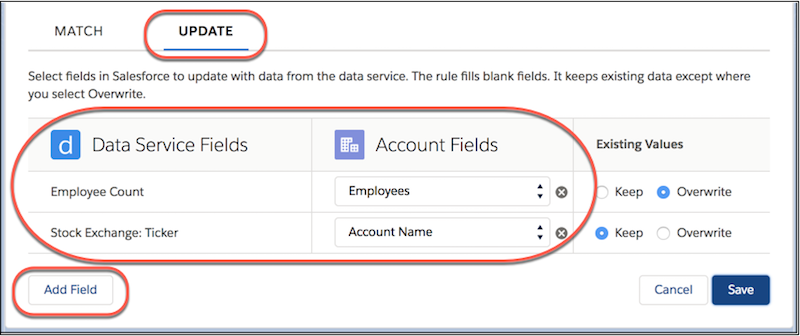
If the rule can update fields, the settings include an Update tab. Click
Update and look at the fields that can be updated with new data
when the rule runs. Check that each data service field is correctly mapped to a Salesforce
standard object field. If needed, select different standard object fields and add or
remove fields to update.
You can add, remove, or change up to 12 mappings at a time before saving.
Rules that support data updates determine a record’s data status using the standard
object field values in the update mapping. The data service fields used to match records
and the fields used to update them can differ.
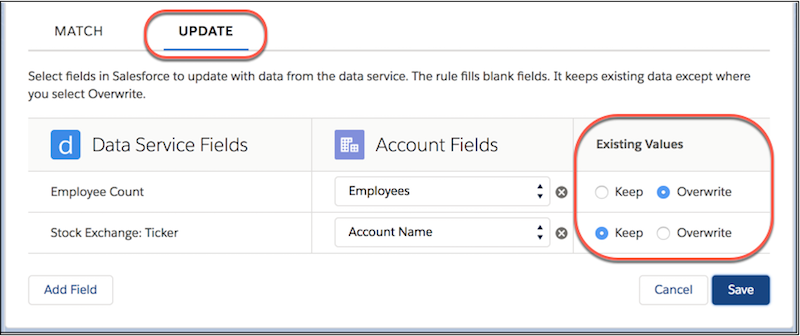
If you use a Lightning Data rule that updates fields via custom object lookups, you can
update a field automatically when new data is available. First enable history tracking for
the field, and then select Overwrite.
You can't overwrite data from company info or geo rules.
We use three kinds of cookies on our websites: required, functional, and advertising. You can choose whether functional and advertising cookies apply. Click on the different cookie categories to find out more about each category and to change the default settings.
Privacy Statement
Required Cookies
Always Active
Required cookies are necessary for basic website functionality. Some examples include: session cookies needed to transmit the website, authentication cookies, and security cookies.
Functional Cookies
Functional cookies enhance functions, performance, and services on the website. Some examples include: cookies used to analyze site traffic, cookies used for market research, and cookies used to display advertising that is not directed to a particular individual.
Advertising Cookies
Advertising cookies track activity across websites in order to understand a viewer’s interests, and direct them specific marketing. Some examples include: cookies used for remarketing, or interest-based advertising.