
You are here:
Customize Duplicate Rules
Manage duplicates more effectively by adjusting the settings in standard duplicate rules or creating custom rules.
Required Editions
| Available in: Lightning Experience and Salesforce Classic |
| Available in: Essentials, Professional, Enterprise, Performance, Unlimited, and Developer Editions |
| User Permissions Needed | |
|---|---|
| To create, edit, or delete duplicate rules: | Customize Application |
| To activate and deactivate duplicate rules: | Customize Application |
| To view duplicate rules: | View Setup and Configuration |
To see the duplicates detected by a duplicate rule, users must have Read access to the object defined in the rule.
- From Setup, use the Quick Find box to find Duplicate Rules.
- To edit a rule, click the rule name, and click Edit. To create a rule, click New Rule, and select the object you want the rule to apply to.
-
Enter the rule details, including a name, description, and record-level
security settings.
If you’re working toward complying with various data protection and privacy regulations, consider excluding personal data from the name and description.
-
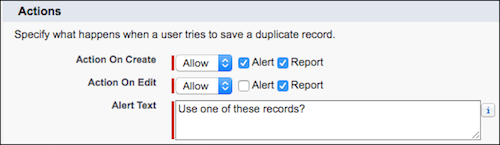
Select the actions you want to occur when a user starts creating a
duplicate.
The default actions are to alert users when they start to create a duplicate, and report on duplicates created when users create or edit records. You can customize the provided alert text.
-
In the Matching Rules section, select the object to compare records on. Then
select the matching rule that determines how records are identified as
duplicates.
The list includes all available matching rules for the selected object.
 Tip
TipIf you want to use a new custom matching rule, we recommend that you finish creating your duplicate rule before selecting Create New Matching Rule. Then create and activate the matching rule. The new matching rule is automatically associated with the duplicate rule.
-
Select the field mapping for each matching rule, if needed.
If the matching rule compares records on two different objects or uses custom fields, consider the following:
- Decide how you want to compare the fields on the first object to the fields on the second object. For example, map a custom field called Work Email to the standard Email field.
- If two text fields with different maximum lengths are compared, data in the fields can be truncated before a match is determined.
-
If you want your duplicate rule to run only when specific conditions are met,
enter the conditions.
For example, the rule runs only if a user with a certain profile or role creates a record. Or set a condition for the rule to run only if the record includes a specific country, state, or province.
-
Save and activate the rule.
For the activation to succeed, all associated matching rules must be active.
-
If you have more than one active duplicate rule for a particular object,
consider adjusting the order in which the rules are processed. Reorder rules by
clicking Reorder on any rule’s detail page.
Tip If the first duplicate rule finds a match for a particular record, subsequent duplicate rules skip that record. Arrange your duplicate rules so that rules with the Block option run before rules with the Allow option.
Did this article solve your issue?
Let us know so we can improve!
