
You are here:
Do More While Composing Emails in Outlook and Gmail
If your Salesforce admin has enabled Inbox, you’ve one or more productivity tools available while composing emails. Your Salesforce admin determines which tools are available in your integration.
Required Editions
| Available in: Lightning Experience |
| Available in: Unlimited, Einstein 1 Sales, and Agentforce 1 Sales Editions. Available for an extra cost in Professional and Enterprise Editions. |
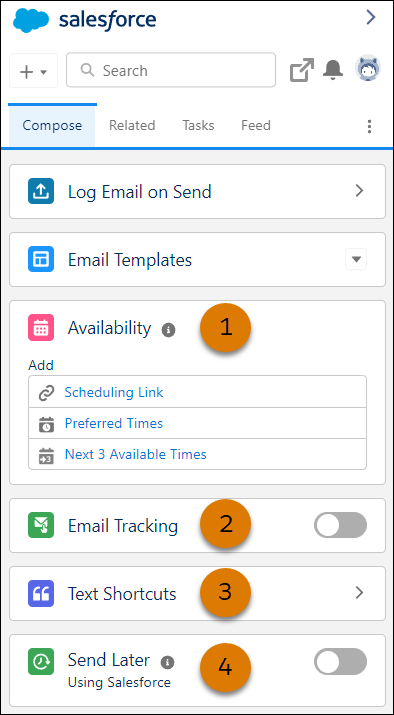
- Availability (1)
- Let recipients select any available time on your calendar by inserting a scheduling link. Or insert open time slots from your calendar directly in an email for recipients to select which of your preferred times works best. The available times you provide are updated as your calendar availability changes. After a recipient selects a time, the event invitation is automatically generated and added to attendee calendars. If your admin has enabled Zoom video integration, connect your Zoom account and select to have a Zoom meeting link automatically added to the generated event invitation.
- Email Tracking (2)
- To understand who’s engaging with the messages you send, turn on Email
Tracking, and select whether to track links in the email.
 Tip The integration remembers your last email tracking setting, so you don’t have to turn it on for each new email. In Outlook, the integration pane must be open when you send the email for it to be tracked.
When a recipient opens your email or clicks links in the email, a receipt appears on the Feed tab. The Feed tab shows the engagement information for all tracked emails.
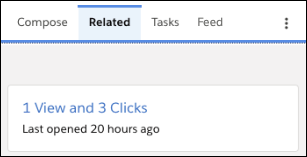
In the Outlook integration, see tracking results for an individual email in the Related tab. Your Salesforce admin determines where the individual tracking information appears in your integration. If it’s not on the Related tab, ask your admin for help.
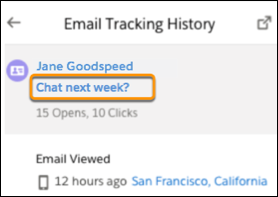
In the Gmail integration, from the Email Tracking History for an email, click the subject line to go directly to the email in your inbox.
- Text Shortcuts (3)
- To save yourself time and ensure consistency when composing emails, create shortcuts
for the common phrases that you use the most. The message can be up to 4,096 characters.
The text shortcuts you save are available for your use only. To share text with other
reps, use an email template.
In the Gmail integration, assign a shortcode to each text shortcut. You can type the shortcode + Enter or the shortcode + a space to add the text to the body of an email. In both Gmail and Outlook, you can select the text shortcut from a list to add it to an email.
Tip If your admin enabled Salesforce quick text, text shortcuts saved in the Outlook or Gmail integration are available as quick text in emails in Salesforce. However, in Salesforce email, the text shortcuts you create in the Gmail integration don’t include the shortcode. You can also use your own quick text that’s saved to the Email channel within Salesforce in the Outlook and Gmail integrations. Shared, org-wide quick text isn’t available in the integrations. - Send Later (4)
- To compose your email now and schedule it to send when it has the biggest impact, turn on Send Later. To review and manage your scheduled emails in the Scheduled tab, schedule to send your email using Salesforce instead of using the Send Later options in Outlook or Gmail. Select the day and time to send your email. Messages are saved as drafts until they’re sent.
