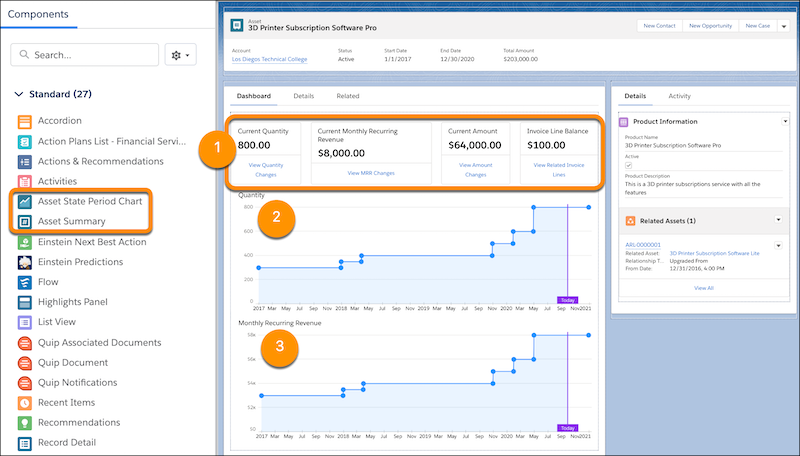
Add Lifecycle Management Components to the Asset Layout
Configure Customer Asset Lifecycle Management components so that reps see the dashboard.
The dashboard consists of asset summary cards and
charts. (Salesforce Billing Managed Package)
Required Editions
Available in Lightning Experience in Professional, Enterprise, Unlimited, and
Developer Editions with
Salesforce CPQ Plus
and Salesforce Billing
Add the components Asset Summary (1) and Asset State Period Chart for quantity and monthly
recurring revenue (MRR) (2 and 3) to the asset page layout.
In Setup, in the Object Manager, find Asset. Click
Lightning Record Pages, and create or open a layout.
Display the summary cards by dragging the Asset Summary component into the
layout.
You can hide individual cards using field-level security. The Asset Summary component
can’t be otherwise customized.
Display the two charts by dragging the Asset State Period Chart component into the layout
twice.
Select the first chart you dragged into the layout. In the Page sidebar, under Field to
Display, select Quantity.
Select the second chart you dragged into the layout. In the Page sidebar, under Field to
Display, select Monthly Recurring Revenue.
On assets that aren’t lifecycle-managed, Customer Asset Lifecycle Management components
still appear, but without data. To hide each component on those assets, under Set Component
Visibility, add a filter with the following values.
We use three kinds of cookies on our websites: required, functional, and advertising. You can choose whether functional and advertising cookies apply. Click on the different cookie categories to find out more about each category and to change the default settings.
Privacy Statement
Required Cookies
Always Active
Required cookies are necessary for basic website functionality. Some examples include: session cookies needed to transmit the website, authentication cookies, and security cookies.
Functional Cookies
Functional cookies enhance functions, performance, and services on the website. Some examples include: cookies used to analyze site traffic, cookies used for market research, and cookies used to display advertising that is not directed to a particular individual.
Advertising Cookies
Advertising cookies track activity across websites in order to understand a viewer’s interests, and direct them specific marketing. Some examples include: cookies used for remarketing, or interest-based advertising.