
You are here:
Run the Migration Tool Readiness Check
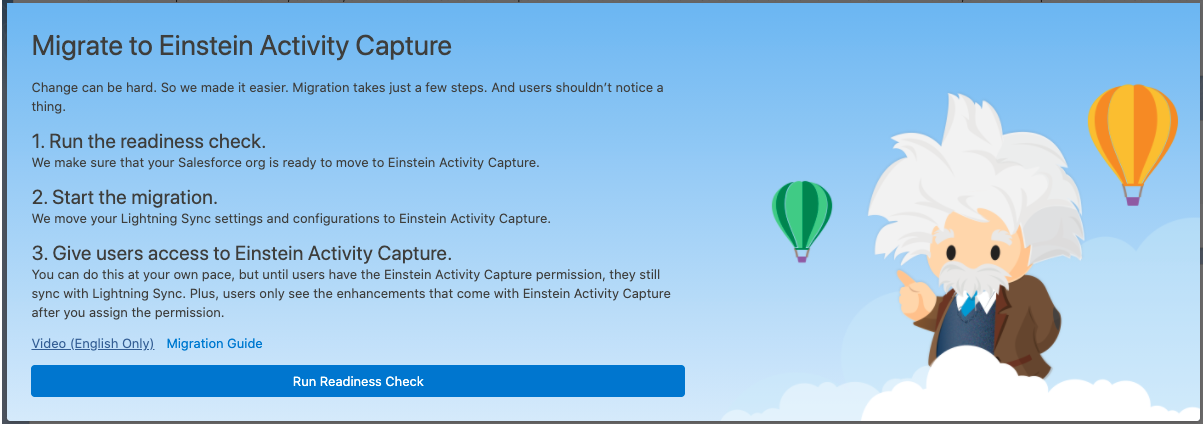
After you kick off migration process, the Lightning Sync migration tool prompts you to run the readiness check. The readiness check ensures that any problematic configurations are addressed before you move your settings to Einstein Activity Capture. You can pause your migration to address potential issues before you proceed with the move.
Required Editions
| User Permissions Needed | |
|---|---|
| To access the Lightning Sync migration tool: | Manage Users AND Manage Lightning Sync |
After you find the migration tool in your Lightning Sync settings, run the readiness check from the second page of the migration tool.
Click Run Readiness Check.
If the readiness check identifies any migration issues, the tool tells you how to proceed. To get more help, these sections explain how to address migration issues.
After you sort out all listed issues, run the readiness check again until the migration tool tells you that you’re ready to continue to the next step. You can run the readiness check as many times as you want to.
An Event Sync Setting Isn’t Available with Einstein Activity Capture
Einstein Activity Capture doesn’t support the Events users select option for the Specify Which Exchange Events Sync to Salesforce setting. If the readiness check reports this status, before moving your settings, we recommend that you learn how the tool handles the unsupported setting and follow a few preparatory steps.
The Events users select option let users select each Outlook event that they want to sync to Salesforce using the Outlook Integration or Inbox side panel. See Use the Outlook or Gmail Integration to Select Which Events Sync.
When you move your settings to Einstein Activity Capture, the unsupported setting can’t be migrated for the affected configurations. Likewise, the tool also sets the event sync direction for the configuration to Don’t sync. Doing so prevents all Outlook events from syncing for users in this configuration. After you migrate your settings, you can either leave event sync turned off or prepare your users to sync all events, and then turn on event sync again. The tool retains all of your other event sync settings saved on the configuration’s data set.
To manage this issue, before moving your settings, we recommend following these steps.
- Review your Lightning Sync configurations and note these details.
- Record the names of the configurations that have the unsupported event sync option turned on. Look for the Specify Which Exchange Events Sync to Salesforce setting. The option that isn’t supported is called Events users select.
- Record the sync direction for each affected configuration if you don’t think that you can remember what it was set to.
- Optionally, you can record which users are assigned to each affected configuration. If you want to notify users before their events stop syncing, it can be helpful to record that list now. But you can locate affected users after migration too, as long as you recorded the names of the affected configurations.
- Consider whether you want users to start syncing all events when you roll out Einstein Activity Capture. You can decide later, but it’s a good idea to plan now so that you can notify users about the change (see next step). If you need help with deciding, ask your sales managers or someone in a sales operations role for their opinion.
- Plan to communicate expected changes to users who are assigned to affected configurations.
- Before you move your settings: Tell users in affected configurations when they can expect events to stop syncing. Also describe the new behavior for the Log Events button. See Use the Outlook or Gmail Integration to Select Which Events Sync. Users notice these changes as soon as you tell the tool to move your settings.
- Before you re-add event sync to migrated configurations: Tell users how to prepare their calendars to prevent events from syncing, and let them know how much time they have to do so before you turn on event sync. And users who have the Einstein Activity Capture permission have some additional options for limiting what syncs.
- If you decide to start syncing all events, after you move your settings to Einstein Activity Capture, re-add event sync to your affected configurations. This documentation tells you when the time comes to take that step.
Too Many Users and Profiles in a Single Sync Configuration
The migration tool can migrate up to 8,192 users and profiles per Lightning Sync configuration. If you’re syncing more users and profiles in a single configuration, you must adjust those configurations before you can proceed to the next step in the migration tool.
Other Readiness Check Statuses
There are a few other readiness check statutes, but addressing those issues requires some help from Salesforce. Take note of the issue description, and create a case for Salesforce Customer Support describing the status that you saw. Support agents follow up to address the issue so that you can continue with your migration.
