To score your accounts and act on the most accurate and data-driven prospects, spending
less time in analyzing your customers, turn Prospecting Center and Account Scoring. After
Prospecting Center is connected, your data from Data 360 is
synced.
Required Editions
Available in: Lightning Experience
Available with Sales Engagement, which is included with Sales in
Performance, Unlimited Editions, Agentforce 1 Edition, and
available for an extra cost in Professional and Enterprise Editions.
Sales Engagement is also available for an extra cost in Service and Lightning
Platform.
Important Prospecting Center is scheduled for retirement in all Salesforce orgs
as of April, 2026. For existing customers, Prospecting Center remains available till April
2027.
User Permissions Needed
To give users access to the Sales Engagement app:
Sales Engagement User
Make your selections based on your preferences on the Prospecting Center setup page, and then
start using the Prospecting Center app.
In Setup, enter Prospecting Center in the Quick Find box, and then click
Prospecting Center.
Click Select to choose a data space that is most relevant to
you. After you select your data space, you can't modify your selection.
Click Connect to make sure that the Data 360 is set up and
connected. After Data 360 is connected, your data is synced to the Prospecting Center
app. You can also use data connectors to bring in your data from a third party.
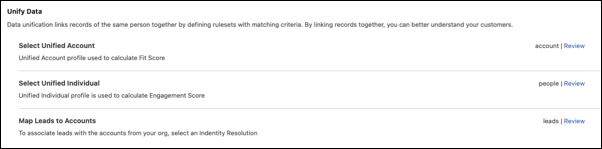
To add the respective Unified Account, Unified Individual DMOs, and Lead Identity
Resolution, click Select.
To modify the selected DMOs, click Review.
Turn on Prospecting Center.
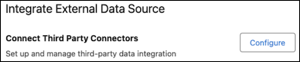
To bring in your data from an external data source, click
Configure.
Select the created segments.
From the Prospecting Center, sales reps can see how marketing segments created in Data 360 by their marketing team correspond to their accounts.
We use three kinds of cookies on our websites: required, functional, and advertising. You can choose whether functional and advertising cookies apply. Click on the different cookie categories to find out more about each category and to change the default settings.
Privacy Statement
Required Cookies
Always Active
Required cookies are necessary for basic website functionality. Some examples include: session cookies needed to transmit the website, authentication cookies, and security cookies.
Functional Cookies
Functional cookies enhance functions, performance, and services on the website. Some examples include: cookies used to analyze site traffic, cookies used for market research, and cookies used to display advertising that is not directed to a particular individual.
Advertising Cookies
Advertising cookies track activity across websites in order to understand a viewer’s interests, and direct them specific marketing. Some examples include: cookies used for remarketing, or interest-based advertising.