
You are here:
Get Ready to Sync Events with Lightning Sync for Microsoft® Exchange
You can choose which events sync from your Microsoft® calendar application to Salesforce.
Required Editions
| Available to sync records from: Salesforce Classic, Lightning Experience, and the Salesforce mobile app |
| Available to set up from: Salesforce Classic and Lightning Experience |
| Available in: Professional, Enterprise, Performance, Unlimited, and Developer Editions with Sales Cloud, Service Cloud, and Lightning Platform |
| User Permissions Needed | |
|---|---|
| To sync events both ways: | Read and Edit on events AND Event sync direction set to Sync both ways in an active Lightning Sync configuration |
| To sync events from Salesforce to Exchange: | Read on events AND Event sync direction set to Salesforce to Exchange in an active Lightning Sync configuration |
| To sync events from your calendar to Salesforce: | Create on events AND Event sync direction set to Exchange to Salesforce in an active Lightning Sync configuration* *If admins enable the Automatically relate events to Salesforce records option in a user’s sync configuration, users should also have Read on contacts and leads to take advantage of that feature. |

Starting in Winter ‘21, Lightning Sync isn’t available to new Salesforce customers. Use Einstein Activity Capture to sync events, contacts, and emails between your connected account and Salesforce.
If you have Lightning Sync, use the migration tool to move to Einstein Activity Capture before Lightning Sync retires in April 2027.
If you use Lightning Sync with Microsoft Office 365 and Exchange Web Service (EWS) as your authentication method, complete your migration by August 2026 to avoid service disruption. In October 2026, Microsoft retires EWS for Microsoft 365 and replaces it with Microsoft Graph API. After migrating to Einstein Activity Capture, upgrade to the Microsoft Graph authentication method. See Upgrade Microsoft Office 365 Authentication Method to Microsoft Graph in Einstein Activity Capture.
This change affects all orgs except those using Government Cloud.
If your administrator has set up Lightning Sync for Microsoft Exchange, your events sync automatically between your Microsoft calendar to Salesforce. Events sync when you create or update them. If you’ve got many events, your first sync could take some time.
Admins decide in what direction your events sync: between Salesforce and your Microsoft Exchange server, or just one way. Ask your admin in which direction you’re set up to sync, so you know where to update your events.
Admins can select more settings to define your sync experience. Ask your admin about how you’re set up to sync in these cases:
Prevent Personal Events from Syncing
You can prevent events from syncing with Salesforce in different ways.
- Create a separate calendar in your calendar application to keep track of your personal events. Lightning Sync is designed to sync only your default Microsoft Exchange calendar to Salesforce.
- Ask your admin if your sync configuration is set up to sync private events. If you’re
not syncing private events, you can assign your personal events with the
Private option from your calendar application, and those events
won’t sync with Salesforce.
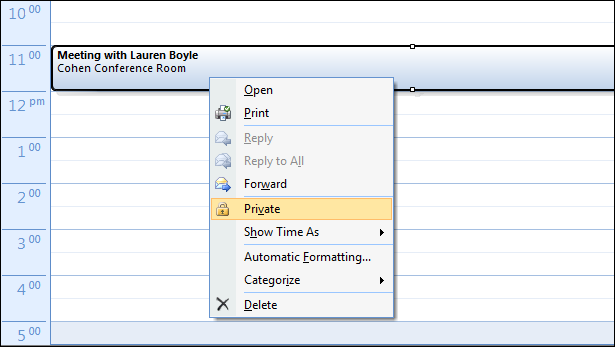
For example, you can mark an event as private from Microsoft Outlook® like this.
Respond to Event Invitations from Your Microsoft Calendar
Your responses to event invitations don’t sync from Salesforce to your Microsoft Exchange-based calendar. To avoid overwriting your attendance status, learn where is best to accept and decline event invitations based on your sync direction.
