
You are here:
Salesforce Spiff Release Notes for June 13, 2025
Scale your company’s incentive compensation management system to include more integrated data sources, with more tools for optimizing your connected data and exporting reports more efficiently. Add users to Spiff more easily, build reports that fully comply with financial reporting requirements, and gain more insight into all the activity in your Spiff environment.
Required Editions
| Available in: both Salesforce Classic (not available in all orgs) and Lightning Experience |
| Available in: Enterprise, Unlimited, and Developer Editions |
| Available for an additional cost in: Professional Edition with Web Services API Enabled |

Include More Salesforce Data in Your Commission Calculations
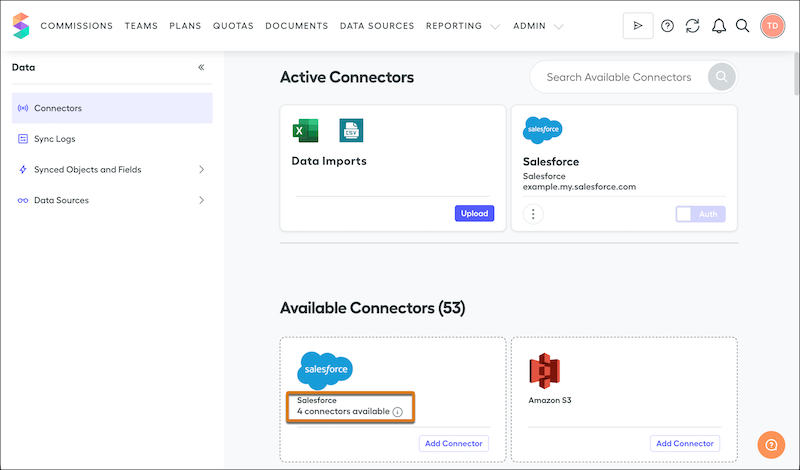
Build a more comprehensive commission calculation solution for your business and integrate critical Salesforce records from more sources into Spiff. You can now connect up to five Salesforce orgs to your Spiff environment, including both sandbox and production orgs. Easily configure synced data for each org with a simplified experience for selecting, renaming, and mapping data.
How: Set up multiple Salesforce connectors.
Reuse and Maintain a Salesforce Connector More Easily
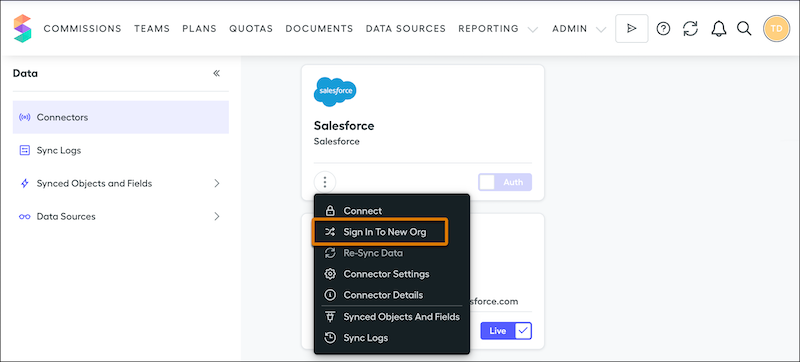
Breathe easy and avoid the hassle of submitting a Salesforce Customer Support case when you accidentally connect to the wrong environment for a Salesforce connector in Spiff. After you set up a Salesforce connector, easily swap the connected org between a production and sandbox environment, or rename the connector, with just a couple of clicks.
How: On the Connectors page, click the three dots on a Salesforce connector card and select Sign in To New Org.
Filter Synced Salesforce Data More Efficiently
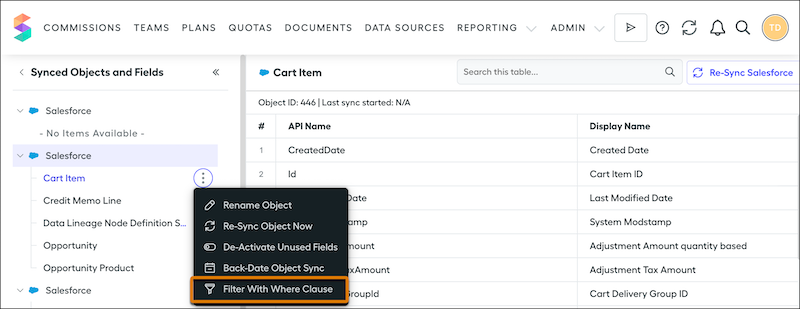
Enjoy improved performance, comply with data sharing requirements, and reduce the amount of noise when you work with synced Salesforce data in Spiff. After you set up a Salesforce connector and sync data in Spiff, add a filter with a SOQL WHERE clause. For example, filter synced users, accounts, or opportunities to narrow and simplify the data that you work with in Spiff. Previously, this functionality was available only by submitting a Salesforce Customer Support request.
How: On the Synced Objects & Fields page, select an object that you mapped for a Salesforce connector. From the three dots menu, select Filter With Where Clause.

WHERE clause, but
doesn’t validate that the clause returns any data. To test whether your clause
returns the results you expect, enter a clause, sync data, check your sync logs for
errors, and iterate if necessary. We recommend that only developers with SOQL
experience implement this filter. See WHERE in SOQL and SOSL Reference.
Export Commission Report Data for Integration with Other Systems
Access and integrate Spiff commission data with other systems more easily, such as automating payroll and powering analytics. With new Spiff Reporting API endpoints, automate the export and download of Spiff custom reports in .csv format. This enhancement helps you avoid repetitive manual downloads and connects your Spiff environment with more enterprise-scale tools.
How: To get started, create a custom report with the API use case.
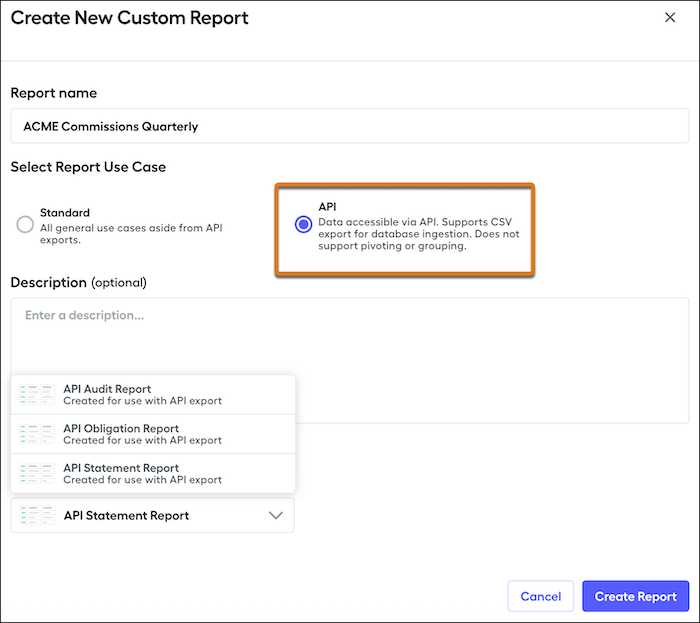
Then, generate a Client ID and Client Secret for API access, and use those credentials to generate a bearer token for OAuth 2.0 authentication.
See Get Started with Salesforce Spiff Reporting API in the Salesforce Spiff Developer Guide.
Add Individual Users More Efficiently
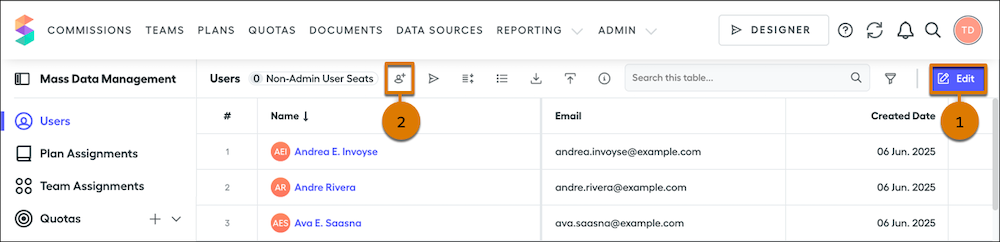
Save time and avoid frustration when you include more people from your company in your Salesforce Spiff environment. Add individual users with only a few clicks. Previously, the only way to add individual users was to upload a spreadsheet with details, which was time-consuming for individual users.
How: On the Users page From the Admin menu, click Edit (1) and then click Add User (2) in the toolbar.
Audit Financial Reports for SOX Compliance with Confidence
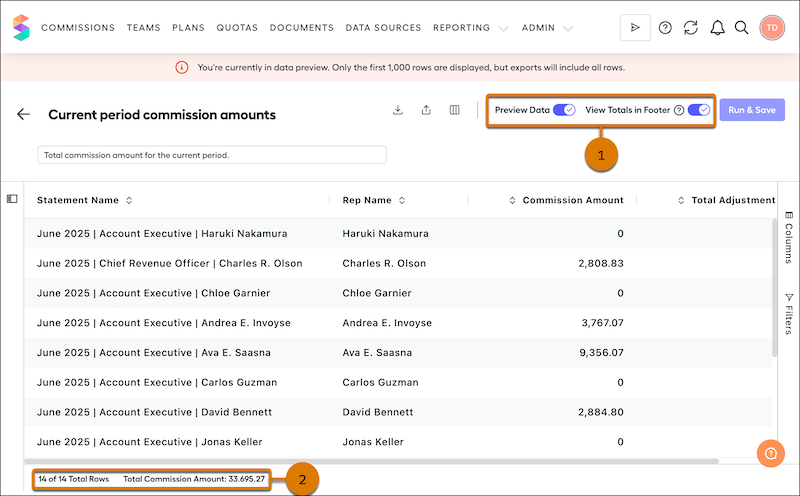
Help make sure that your company provides a trusted auditing trail for your financial reporting of commission data. For Sarbanes-Oxley (SOX) Act compliance, each Spiff tabular report now includes an option to show the total number of rows in the report and the total value of the Commission Amount column. These enhancements are available in custom reports, expense reports, and the Leader dashboard.
How: In a report, turn on Preview Data and then turn on View Totals in Footer (1). The total numbers appear in the report footer (2).
See Considerations for Creating and Managing Reports in Salesforce Spiff.
View More Operational Transparency in the System Activity Log
Gain a more complete understanding of the data operations and performance in your Spiff environment. The System Activity Log now includes entries for team and plan assignments made with the API and for calculation start and end times.
