
You are here:
Batch Test Lead Nurturing Nudge Emails in Testing Center
To see how your Lead Nurturing agent generates nudge emails at scale to prospects using the prospect record details and the Draft Nudge Email prompt template action, use Testing Center.
Required Editions
| Available in: Lightning Experience in Enterprise, Performance, and Unlimited editions with Sales and Einstein for Sales. |
| User Permissions Needed | |
|---|---|
| To set up and test Agentforce Lead Nurturing: | Configure Agentforce SDR Agent |
In Testing Center, set test conditions, upload a CSV file, and view the resulting nudge emails.
- In Setup, enter Testing Center in the Quick Find box. Then click Testing Center.
- Click New Test.
- Give your test a name and choose the Agentforce Sales Development Rep agent as the agent to test. Add a description for your test if you wish. Click Next.
- On the Test Conditions page, click Include context variables. Context variables define the conditions for your testing scenario, such as whether you’re testing leads, contacts, or person accounts, intro emails or nudges, etc.
-
From the list of context variables, select the variables needed for your test. Then
click Next.
For testing nudge emails, choose the Record Type, Email Scenario, Action Cadence Step Tracker ID, Record, Email Body, and Test as Last Nudge variables.
- On the Test Data tab, Upload Test Cases (.csv) is selected by default. Use this option to create and upload a CSV file. Click Template to download a CSV file containing the columns you’ll need for your test. You’ll fill in only the columns needed for testing nudge emails.
-
Open the template CSV file in a spreadsheet editor like Microsoft Excel or Google
Sheets. Delete the placeholder data beginning on row two. Then populate the rows with the
lead, contact, or person account records and the associated context values that define
your nudge email testing scenario. For nudge emails, the CSV file includes these
columns.
- Utterance: the request sent to the LLM to initiate drafting the nudge email.
- Expected Subagent: the subagent used to draft the email.
- Expected Actions: the agent action used to draft the email.
- Expected Response: the type of response requested from the agent.
- Context Variable OrchestrationStage: the email testing scenario. In this case the scenario is Nudge.
- Context Variable currentRecordId: This is a record ID of a lead, contact, or person account you want to test with.
- Context Variable actionCadenceStepTrackerId: Your agent uses Sales Engagement Cadences to orchestrate its outreach. This is the ID of the email cadence step tracker associated with the lead, contact or person account record. In Testing Center, use the dummy ID 8HF000000000000.
- Context Variable currentObjectApiName: the name of the object you are testing. Valid values are Lead and Contact. To test with person accounts, use Contact.
- Context Variable emailBody: The body of the previous email sent by the agent to the prospect. This can be an actual agent-generated email, or other email content you want to test with.
- Context Variable testAsLastNudge: tells the LLM whether to treat this nudge as the last outreach that will be sent. Valid values are True or False.
Fill the rows of your CSV file according to these guidelines.
Here’s an example of a valid CSV file for testing nudge emails to leads.Column NAME Different Values Per Row? Input Value Details Utterance No Draft a nudge email to a lead. Do not schedule the email. Your response should be a text-formatted email and not JSON. Update to contact or person account if needed. Expected Subagent No Send Outreach Expected Actions No ['DraftNudgeEmail'] Expected Response No A nudge email is successfully drafted. Context Variable OrchestrationStage (Email Scenario) No Nudge Context Variable currentRecordId Yes A valid record ID For nudge email testing, this is the only column that will contain different values per row. The record ID appears in the URL of the record detail page. Context Variable actionCadenceStepTrackerId No 8HF000000000000 This is a dummy value used for testing. Context Variable currentObjectApiName No Lead or Contact To test person accounts, use Contact. Context Variable emailBody Yes The body of the previous email sent by the agent to the prospect. This can be actual agent-generated content, or other email content you want to test against. Context Variable Is_Agent_at_Last_Nudge Yes True Can be True or False 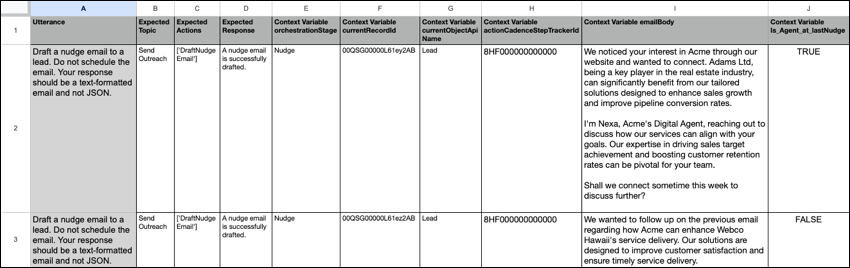
- On the Test Data screen, click Upload Files. Choose the CSV file you created and click Open. When the upload is complete, click Done.
-
On the Evaluations screen, a list of the available output quality evaluations appears.
Choose the evaluations you want to see for the generated output. Then click
Save & Run.
Your new test appears in the Tests list in Testing Center.
- To run your test, click the test name in the Tests list.
The agent generates a nudge email to each of the prospects using the parameters in your CSV file. The generated output and evaluations appear in the Test Results list. Because you aren’t actually sending the generated email during testing, email scheduling errors can appear in the results. You can ignore these errors.
Check the results to see if the generated emails meet your business requirements.
