
You are here:
Convert Country Names to Codes
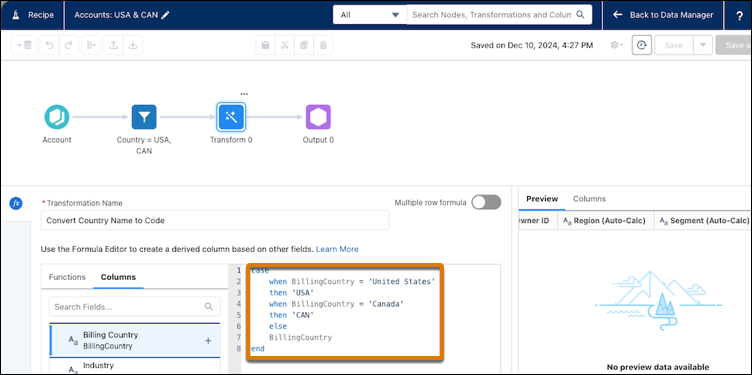
Ensure accurate unit assignments to boundaries when you replace country names with codes in Territory Planning live datasets by updating a recipe. Without country codes, your sales plans can include inaccurate assignments.
| Available in: both Salesforce Classic (not available in all orgs) and Lightning Experience |
| Available in: Professional, Enterprise, Performance, Unlimited, and Developer Editions with Web Services API enabled |
| User Permissions Needed | |
|---|---|
| To convert country names to codes with recipes: | Sales Planning Admin permission set AND One of these:
|

- From Setup, in the Quick Find box, enter Data Pipeline, and then select Getting Started.
- Click Launch Data Manager. Then click Recipes.
- Open a recipe.
- Add a transform node before the Output node.
- Click Formula in the Transform section, and then Custom Formula.
- In Formula Editor, create a formula to covert each value in your country attribute to its corresponding country code.
- For the Output Type, select Text.
- Click Apply.
- Test the formula in the Preview panel and confirm it works as you expect.
- Save and run the recipe.
- Add the country code attribute to a data source or territory plan alignment.
Did this article solve your issue?
Let us know so we can improve!
