
Loading
Feature Disruption - Service Cloud VoiceRead More
Feature degradation | Gmail Email delivery failureRead More
Sales Performance Management
Table of Contents
Select Filters

          No results
          No results
          Here are some search tips

          Check the spelling of your keywords.
          Use more general search terms.
          Select fewer filters to broaden your search.

          Search all of Salesforce Help
          Set Up Product Hierarchy and Product Seasonality in Sales Planning

          Set Up Product Hierarchy and Product Seasonality in Sales Planning

          An effective sales plan depends on aligning your company’s important products with your seller strategy. In Sales Planning, set up a product hierarchy and specify seasonality for the products that your team sells. Seasonality represents the emphasis placed on a particular product during a certain time of year. For example, seasonality can increase in the last fiscal quarter. A product hierarchy also helps with Quota Planning.
          Required Editions

          Available in: both Salesforce Classic (not available in all orgs) and Lightning Experience
          Available for an additional cost in: Enterprise, Performance, Unlimited, and Developer Editions with Sales Planning in English only, and only if you have Web Services API enabled
          User Permissions Needed
          To create products in sales plans:

          One of these:

          • Sales Planning Admin permission set
          • Sales Planning Ops Analyst permission set (if you’re added to a plan from the Plan Details page)

          AND

          One of these:

          • Query for Datapipelines User for Sales Planning permission set
          • CRM Analytics Plus User permission set
          • CRM Analytics Growth User permission set
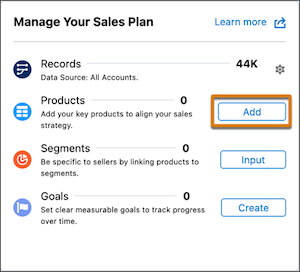
          1. On the details page of a sales plan, scroll to the Manage Your Sales Plan card and click Add next to the Products item.
            The Manage Your Sales Plan card on the sales plan details page, showing the option to add products
            If someone set up products previously, click the gear icon Gear icon for the Products item.
          2. In the Product Setup window, add products to your product hierarchy.
            1. In the Child Products section, enter the name of a product or category and press Return (macOS) or Enter (Windows).
            2. To delete a product or category, click the trash icon next to its name.
          3. In the Product Setup window, specify seasonality percentages for the product hierarchy.
            1. Select a node in the product hierarchy, click the three dots in the Seasonality section, and click Edit.
            2. Enter values that add up to 100% and apply your changes.
            Tip
            Tip By default, child products inherit the seasonality values of its parent product. To override a child product’s inherited seasonality, edit the child product’s values. To apply the same seasonality values to all products in your hierarchy, edit the values of the All Products node.
          4. To save your changes, make sure that you see a green checkmark in the lower left corner, and close the Product Setup window.
           
          Loading
          Salesforce Help | Article