Enrich the data in your Sales Planning datasets so that you include critical details for
segmentation, territories, and quotas.
Required Editions
Available in: both Salesforce Classic (not available in all orgs) and Lightning Experience
Available for an additional cost in: Enterprise, Performance, Unlimited, and Developer Editions with Sales Planning in English only, and only if you have Web Services API enabled
User Permissions Needed
To transform data for Sales Planning:
Sales Planning Admin permission set
AND
One of these:
Data Pipelines Base User permission set
CRM Analytics Plus Admin permission set
CRM Analytics Growth Admin permission set
From the App Launcher, open Data Manager.
Select Recipes.
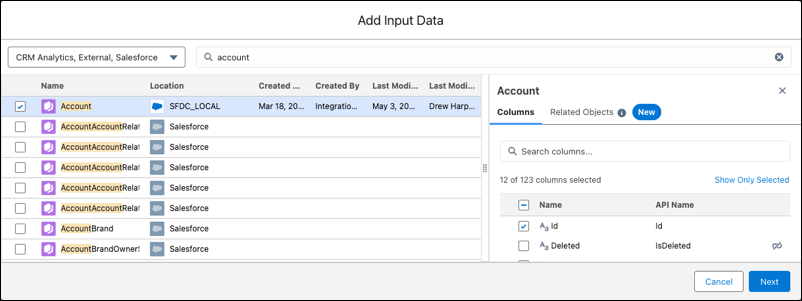
Click New Recipe | Add Input Data. Then search for and select your dataset’s object with the location SFDC_LOCAL,
such as Account. Click Next.
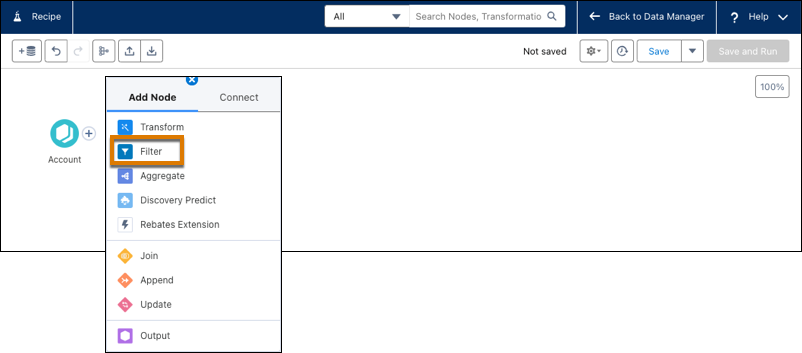
To filter your dataset, next to your object, click + and then click
Filter. For example, you filter accounts to include only ones in the
United States.
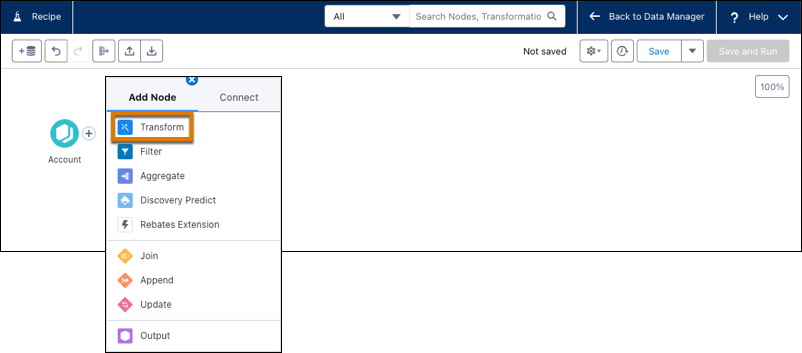
To modify your dataset, next to your object, click + and then click
Transform.
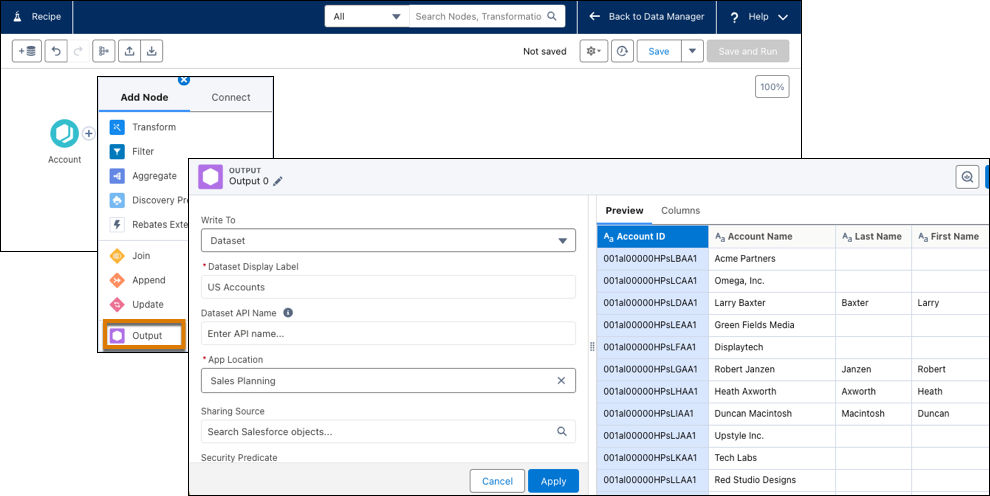
Create output for your dataset. Click + and then click
Output.
Click Apply, and then click Save and Run.
Enter a name for the recipe, choose whether you’re using the recipe with Data Pipelines or CRM Analytics, and save your work.
We use three kinds of cookies on our websites: required, functional, and advertising. You can choose whether functional and advertising cookies apply. Click on the different cookie categories to find out more about each category and to change the default settings.
Privacy Statement
Required Cookies
Always Active
Required cookies are necessary for basic website functionality. Some examples include: session cookies needed to transmit the website, authentication cookies, and security cookies.
Functional Cookies
Functional cookies enhance functions, performance, and services on the website. Some examples include: cookies used to analyze site traffic, cookies used for market research, and cookies used to display advertising that is not directed to a particular individual.
Advertising Cookies
Advertising cookies track activity across websites in order to understand a viewer’s interests, and direct them specific marketing. Some examples include: cookies used for remarketing, or interest-based advertising.