You are here:
Filter Records in Workspace
You can view, sort, filter, and edit your leads, opportunities, contacts, and accounts in the Workspace list experience. Set up your workspaces with filters so that you can immediately start working with the relevant records.
Required Editions
| Available in: Lightning Experience |
| Available in: Starter, Enterprise, Performance, Unlimited, and Developer Editions with Sales Cloud |
Filtering data lets you focus on the records that matter most and keeps your workspace responsive. Workspaces with fewer than 2,000 records work fastest.
Filtering happens in two places in workspace.
- When a workspace opens, filters set in the Manage Workspace window are applied to the records that are retrieved from the database. No matter what filters are used, no more than 2,000 records are displayed.
- In a workspace list view, after the workspace is opened, you can filter the records that are already there, to focus on the data you’re interested in. This filtering searches through the records that have already been filtered when the workspace was created.
Filter, search, and update records directly in each Workspace list.
Filter What’s Retrieved From the Database
To determine which records are shown from the database in workspace, click Manage Workspace.
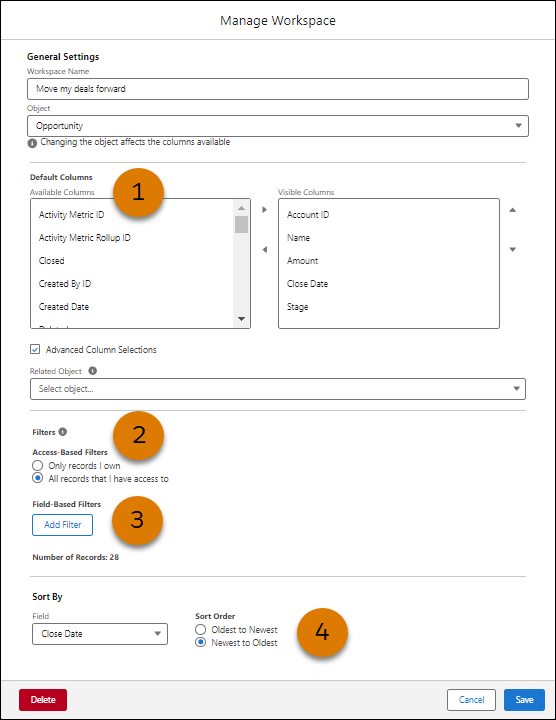
Decide how to filter your records.
- Pick the columns to display (1), so that you can filter and sort on them later.
Choose columns from opportunity, account, contact, lead, case, contract, and custom entities.
- Decide if you want to see all records you have access to, or just records that you own (2).
- Add filters based on field values (3). For example, you want to see all the records that close on a certain date, or next week. At the bottom of this section you can see the number of records that will be returned, based on the filters you’ve applied.
- Choose how you want to sort your list of records. (4)
Filters work together to narrow down your records. Therefore, it doesn’t matter what order you put the filters in. Some people call this kind of filtering an “AND” filter instead of an “OR” filter.

Filter Just the Records in Workspace
After records have been retrieved from your database, they appear in the workspace. You can filter your workspace records from the workspace list view. These filters are applied to the records that are already in the workspace only. Adding or changing a filter in a workspace doesn’t cause new records to appear. Instead, these filters change which records are visible in a workspace.
For example, let’s say that your workspace list contains around 1,700 records. Now you want to find all the records about Amazon.
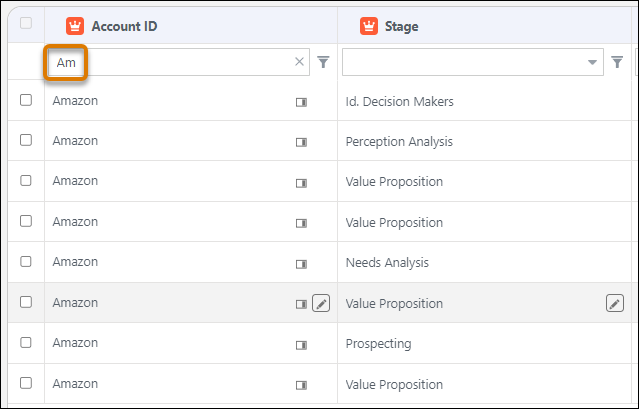
In the Account ID field, start typing Am. Only records whose Account ID starts with “Am” display.
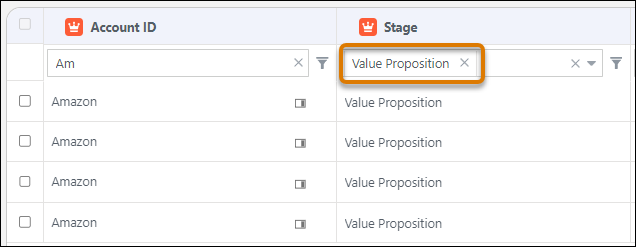
Add additional filters, such as which stage the opportunity is in, to continue narrowing the list of records.