
You are here:
Create a Range Table for an Accelerator
To implement a commission accelerator in Salesforce Spiff, create a range table and reference the table within an accelerator function.
Required Editions
| Available in: both Salesforce Classic (not available in all orgs) and Lightning Experience |
| Available in: Enterprise, Unlimited, and Developer Editions |
| Available for an additional cost in: Professional Edition with Web Services API Enabled |
| User Permissions Needed | |
|---|---|
| To create a range table: | A Spiff user role with these permissions turned on.
|
Instead of creating a table for each subsequent plan year, iterate on an existing table by adding columns. Sometimes, you can use the table for multiple rules or plans, especially if they use the same upper and lower bounds. You can add columns such as Enterprise Rates or MM Rates, and reference the appropriate return column when you create the calculation.
-
In Plans, create a folder for the payout rule.
The folder can stand alone or you can nest the folder under a plan. We recommend that you save all the items related to this rule in a convenient, shared location.
- Click the three dots next to the rule and select New Range Table.
-
Enter a name for the range table.
The name must start with a letter and contain only letters, numbers, and underscores. The name is referenced in the calculations that use the table.
-
In the right panel, change the display name of the table.
The display name appears in the Library panel and can contain spaces and special characters.
-
Fill out the range table according to the rule.
You don’t need to enter commas, currency codes, or currency symbols.
Lower Bound Column For the first tier, leave the lower bound column empty. Upper Bound Column For the final tier, leave the upper bound column empty. Return Value Column Enter the commission rate for the tier. 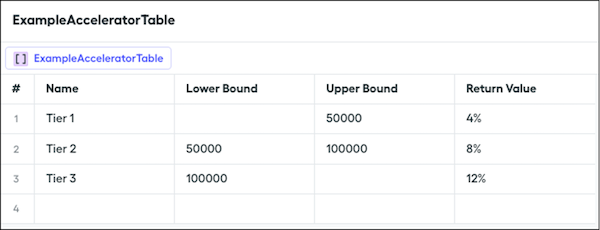
Did this article solve your issue?
Let us know so we can improve!
