
You are here:
Manage Connector Field Syncing in Salesforce Spiff Designer
Sync or unsync objects and their fields from your data source in Salesforce Spiff Designer.
Required Editions
| Available in: both Salesforce Classic (not available in all orgs) and Lightning Experience |
| Available in: Enterprise, Unlimited, and Developer Editions |
| Available for an additional cost in: Professional Edition with Web Services API Enabled |
| User Permissions Needed | |
|---|---|
| To manage connector fields in Spiff Designer: | A Spiff user role with this permission turned on. Designer Configuration: Manage |
-
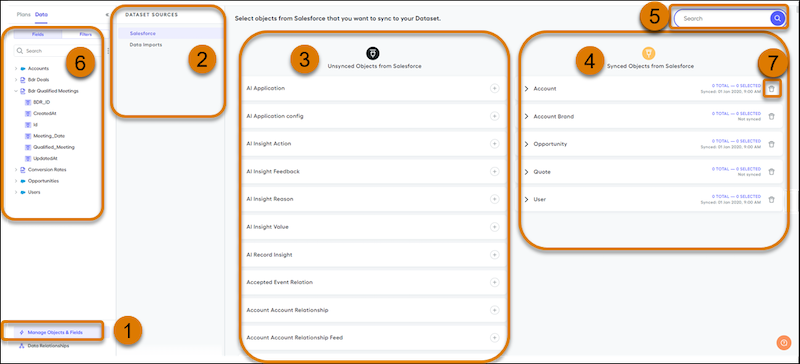
In Designer, click the Data tab, and then click Manage Objects & Fields (1).
If you have data from multiple sources, you select different data sources to review (2). For each data source, find all unsynced (3) or synced objects (4).
-
Add an object to sync.
- Scroll through the list of unsynced objects (3) or search for an unsynced object (5).
- Click the + icon on the object card.
After the object syncs, the object appears in the Synced Objects section. -
Add fields to sync.
-
To see a list of all the fields on the object, click the > icon next to the object's name.
A checkmark indicates that the field is already connected and available for use.
-
To connect a field to the sync, click the + icon.
After the field syncs, the field appears in the Fields tab of the Data section (6). You can include the field in calculations, data filters, statements, and reports. When you enter the field's name, Spiff indicates that the field is recognized by changing the text from black to a color.
-
To see a list of all the fields on the object, click the > icon next to the object's name.
-
Remove an object from the sync.
- In the Synced Objects panel (4), click the trash icon next to the object (7).
-
To confirm that you want to remove the object, click Un-sync.
 Important If the object is used in calculating commissions, removing the object can negatively affect rep commission values.
Did this article solve your issue?
Let us know so we can improve!
