You can sync Salesforce Spiff data with connectors other than the default Salesforce connector. However, management options for other connectors are limited.
Required Editions
Available in: both Salesforce Classic (not available in all orgs) and Lightning
Experience
Available in: Enterprise, Unlimited, and Developer
Editions
Available for an additional cost in: Professional Edition with Web
Services API Enabled
User Permissions Needed
To manage a third-party connector:
A Spiff user role with these permissions turned on.
Connectors: Edit
Data Sources: Sync
From the Admin menu, select Connectors.
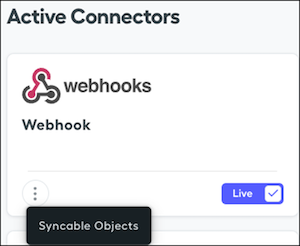
On the connector card, click the three dots, and select Syncable Objects.
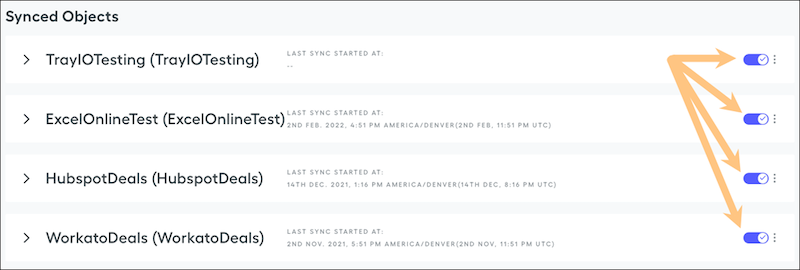
To turn off sync for an object, toggle the switch next to the object.
Manage syncing for individual fields on a synced object.
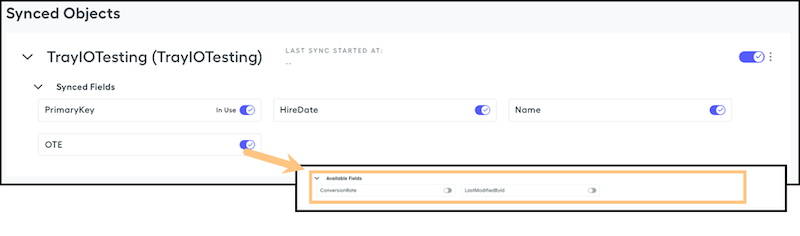
To see which fields have sync turned on and which fields are marked as In Use in Designer, select an object.
Manage syncing for fields in Designer from the Syncing/Unsyncing Objects & Fields page.
To turn off sync on a field, toggle the switch next to the field.
Unsynced fields move to the Available Fields section, where you can turn sync back on.
To turn off sync for all unused fields in an object, click the three dots next to the object name and select Turn off Unused Fields.
This action turns off sync for any field that isn’t enabled for use in Designer, used in the system, or used in calculations. Turning off sync significantly decreases the amount of data pulled into Spiff with each sync.
Did this article solve your issue?
Let us know so we can improve!
Loading
Salesforce Help | Article
Cookie Consent Manager
General Information
Required Cookies
Functional Cookies
Advertising Cookies
General Information
We use three kinds of cookies on our websites: required, functional, and advertising. You can choose whether functional and advertising cookies apply. Click on the different cookie categories to find out more about each category and to change the default settings.
Privacy Statement
Required Cookies
Always Active
Required cookies are necessary for basic website functionality. Some examples include: session cookies needed to transmit the website, authentication cookies, and security cookies.
Functional Cookies
Functional cookies enhance functions, performance, and services on the website. Some examples include: cookies used to analyze site traffic, cookies used for market research, and cookies used to display advertising that is not directed to a particular individual.
Advertising Cookies
Advertising cookies track activity across websites in order to understand a viewer’s interests, and direct them specific marketing. Some examples include: cookies used for remarketing, or interest-based advertising.