
You are here:
Create a Change Set in Salesforce Spiff
Use a change set to deploy updates from a sandbox to your production or parent environment.
Required Editions
| Available in: both Salesforce Classic (not available in all orgs) and Lightning Experience |
| Available in: Enterprise, Unlimited, and Developer Editions |
| Available for an additional cost in: Professional Edition with Web Services API Enabled |
| User Permissions Needed | |
|---|---|
| To create change sets in Salesforce Spiff: | A Spiff user role with these permissions turned on.
|
A change set is a package of configuration changes—such as additions, updates, or deletions—that you’ve made in your sandbox. Select a specific change or a group of changes to deploy to a parent environment. You can include up to 2,000 changes in a change set. However, a smaller change set is easier to maintain and deploy.
-
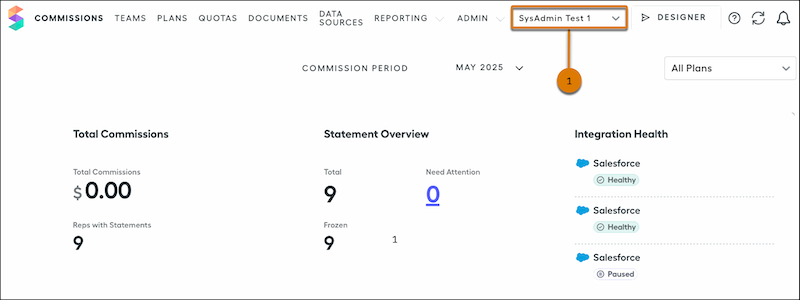
In the parent environment, from your list of environments (1), select a sandbox.
This list appears only if you have access to more than one environment.
- In the sandbox, change, add, or delete custom report metadata or commission logic.
- Save your changes.
-
Click View Changes.
This list shows the changes that you haven’t submitted to the parent environment. Click the change set dropdown to view more information about the changes, and hover over the change set icon to see the type of change.
-
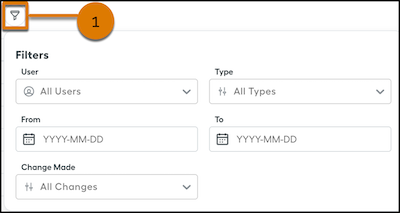
To find specific changes in the sandbox, click Filter (1).
- Select the changes to include in the change set.
- Enter a name for the change set and an optional description.
Did this article solve your issue?
Let us know so we can improve!
