
You are here:
Set Up the Leader Dashboard in Salesforce Spiff
Show sales managers their teams' performance at a glance with the default Leader Dashboard in Salesforce Spiff. To get started, turn on the dashboard from Spiff company settings. Then, create a quota amount calculation and quota attainment calculation in your plan commission logic.
Required Editions
| Available in: both Salesforce Classic (not available in all orgs) and Lightning Experience |
| Available in: Enterprise, Unlimited, and Developer Editions |
| Available for an additional cost in: Professional Edition with Web Services API Enabled |
| User Permissions Needed | |
|---|---|
| To set up the Leader Dashboard: | A Spiff user role with these permissions turned on.
|
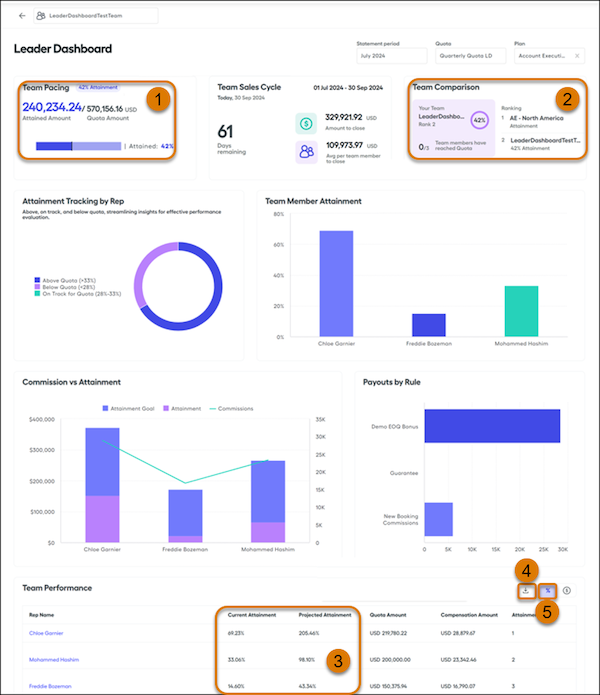
This dashboard calculates the total attainment of a team and the individual attainment percentage for each team member.
- Team members' combined quota and attainment totals in company currency (1).
- Relative team rankings (2), if cross-team comparison is turned on.
- Comparison of current attainment per day versus projected attainment for the entire quota period (3). Current attainment is divided by the number of days that have elapsed in the quota period. Projected attainment is the current attainment multiplied by the number of days that remaining in the quota period.
- Options for exporting the Team Performance table (4) and switching the Team Performance view between currency and attainment percentage (5).
The person viewing the dashboard sees only the data that they have permission to access. For example, team leads see data for only the teams that they lead. If they have access to multiple teams or quotas, they can filter the dashboard view. Admins see data for all teams.
Complete Prerequisites for the Leader Dashboard
-
In your Spiff company settings, select Leader Dashboard and turn on Enable Leader Dashboard.
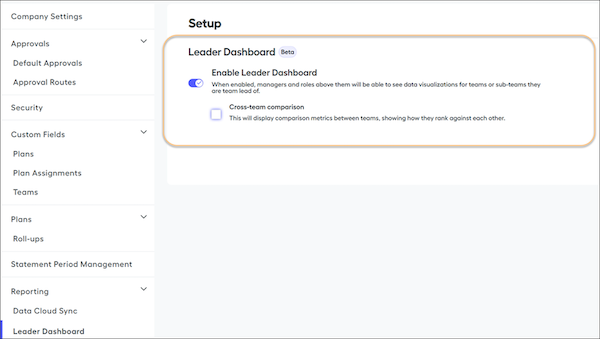
- To show team comparison and rankings in the dashboard, turn on Cross-team comparison.
-
Make sure that you’ve configured at least one team with a team lead who has a manager role.
Team leads can see only the teams that they lead. See Create a Team and Manage Team Members Manually in Salesforce Spiff.
-
Make sure that the team’s members belong to an active plan that’s visible and that has commission statements generated.
 Note If the plan is hidden, the Leader Dashboard doesn’t work correctly.
Review Calculation Requirements
Next, because the dashboard calculates attainment, create two worksheet calculations that provide numbers used in the dashboard calculation: a quota amount in currency and an attainment amount in currency.
Before you create the calculations, review these important requirements.
- Each calculation must be used in commission logic for one plan.
- Each calculation must be new or exclusive to one plan.
- Each calculation must return an amount in currency, not a number or percentage. We recommend that you use your company's corporate currency.
- To prevent any potential issues with the dashboard affecting commission rules, we recommend that you create a ghost rule for each calculation.
Create the Quota Calculation
- Set up a monthly, quarterly, or yearly quota table. See Set Up a Quota Table.
-
Create a quota worksheet calculation that's new or exclusive to the current plan. Follow this pattern and use the
quota()function to return a value in currency.=if(PlanName = "Plan Name", quota("Quota Name"), null)For Plan Name and Quota Name, enter the exact names, including double quotes.
 Important This formula returns
nullif you’re using any other plan. Don’t reuse a quota calculation that’s used with other plans. You can copy and paste formulas from other worksheets.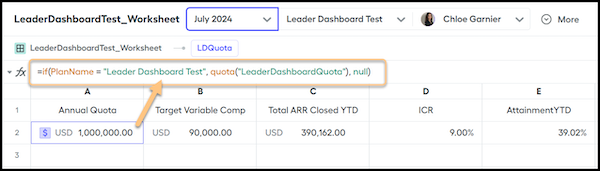
- With the calculation highlighted, expand the Data Tagging section in the right panel.
- For tag, select Quota.
-
For Quota Cadence, match the length of your quota, but not necessarily the same length as your quota table.
- If you have a monthly quota table where each month represents a full annual quota, select the Yearly option. The dashboard calculates projected attainment based on the length of the quota period.
- If you have a monthly quota where each month represents one-twelfth of an annual quota, the dashboard shows that one-twelfth amount. To see the total annual quota on the dashboard, use the
quotas()function instead.
- Repeat these steps for any other required quota calculations.
Create the Attainment Calculation
-
Add a worksheet calculation that's new or exclusive to the current plan and that returns reps' quota attainment in currency for a specific period.
For example, if a rep has closed a certain amount in ARR year-to-date, use the
sum()function to add all ARR__c values from a ClosedInYear data filter with a By Rep filter. Return the total ARR closed per rep for the year. Match the data filter time frame to the quota period, such as a closed-in-quarter data filter for a quarterly quota. If you’re using a monthly quota table to represent an annual quota amount, use a data filter that returns deals from the whole year.=if(PlanName = "Plan Name", sum(ClosedInYear!ARR__c), null)For Plan Name, enter the exact name, including double quotes.
Important This formula returnsnullif you’re using any other plan. Don’t reuse a quota attainment calculation that’s used with other plans. You can copy and paste formulas from other worksheets. Don’t use an attainment percentage calculation. Because the dashboard calculation requires a currency value, don’t convert an existing attainment calculation that returns a different data type, such as a number or percentage, to currency.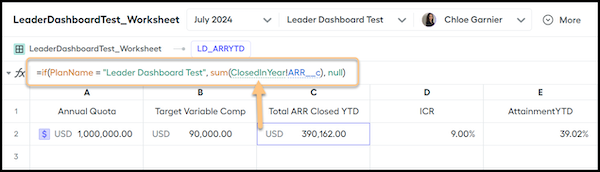
- With the calculation highlighted, expand the Data Tagging section in the right panel.
- For tag, select Attainment.
-
From the Attainment Tag dropdown menu, select the
quota()function that you previously created and tagged.Selecting this option makes sure that the dashboard connects the attainment amount to the correct quota amount. - Repeat these steps for any other required attainment calculations.
If you also use these quota and attainment calculations in commission calculations, recalculate affected commission statements. Skip the remaining steps to create ghost rules.
If you don’t use these quota and attainment calculations in commission logic, complete the remaining steps to create a ghost rule for each calculation.
Create Ghost Rules
If you don’t use these quota and attainment calculations in commission logic, create a ghost rule for each calculation so that the calculations are available in reports. A ghost rule makes sure that the calculations don’t cause issues with standard commission rules.
-
In a worksheet, create a Payout Amount calculation that contains all the tagged quota and attainment calculations.
=if(WorksheetName!QuotaCalculationName, 0, 0) + if(WorksheetName!AttainmentCalculationName, 0, 0)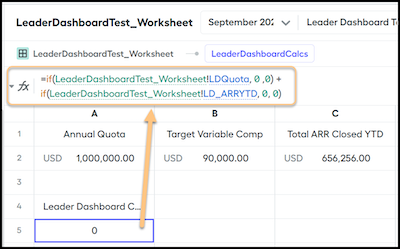
- With the Payout Amount worksheet calculation highlighted, turn on Ghost Rule in the right panel.
- Recalculate all affected commission statements.
The Leader Dashboard is available under the Reporting tab for managers and admins.
