
You are here:
Sync Fields for Data 360 Reporting with Salesforce Spiff
Specify the Salesforce Spiff fields that you want to sync with Data 360.
Required Editions
| Available in: both Salesforce Classic (not available in all orgs) and Lightning Experience |
| Available in: Enterprise, Unlimited, and Developer Editions |
| Available for an additional cost in: Professional Edition with Web Services API Enabled |
| User Permissions Needed | |
|---|---|
| To sync fields with Data 360: | A Spiff user role with this permission turned on. Reporting Configuration: Edit |
Fields that you sync in Data 360 from Spiff belong to one of these categories.
- Obligation-level fields, such as calculated fields or datasheet fields.
- Statement-level fields, such as statement calculations, worksheet calculations, or summary calculations.
-
In the Reporting tab, select Configuration.
The Data Configuration view shows the fields synced with Data 360 and the last time they were synced (1). Recalculating statements triggers a sync.
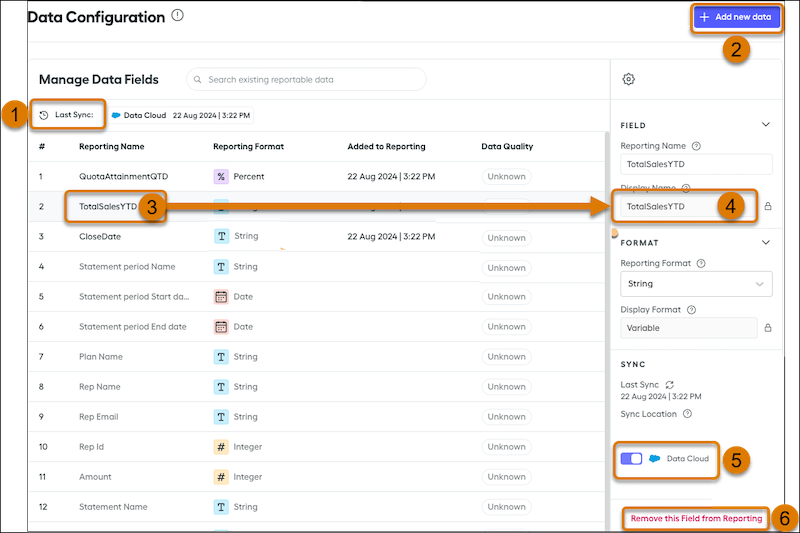
Some Spiff system fields sync to all reporting tools by default. They can’t be removed or edited.
-
Click Add new data (2). You can use the search
functionality to surface fields.
Search for a field by its Designer API name.
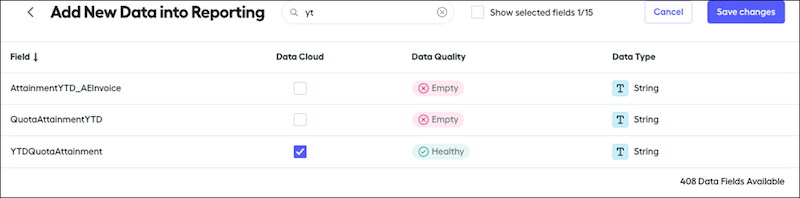
Fields must be used in payout rule logic or displayed in a plan statement to be available for reports. If no records are returned for a search, make sure one of those requirements has been met. See Considerations for Syncing Salesforce Spiff Fields for Data 360 Reporting for additional information.
When choosing fields for your report, use the Data Quality column to see how many records have information for that field. If the status is Empty, it means no records have data for that field. If the status is Bad, it means only a few records have data for that field. This is because the field might only apply to a small number of plans, payout rules, or obligations.
- Select the required fields and save the changes.
-
Select a reporting field from view (3) to configure the settings in the right
panel (4).
- Any system field shown in the Reporting Name column isn’t editable. Additionally, changing the Reporting Name or Reporting Format won’t alter the field anywhere else in Spiff. Specifically, it’ll not affect the Designer API Name or the Display Name of the field.
- The format of a field shown in the Report Format column is often configured in Designer, but in many cases, the field comes through as a string. You can override the data type coming from Designer. As with the reporting name, this won’t affect your data type outside reports.
You can enable or disable syncing a field at any time (5). If the field is no longer in use, click Remove this Field from Reporting (6) to remove the field from the reporting tools.
