
You are here:
Data Filters in Salesforce Spiff
Data filters are fundamental tools for creating specific payout rules that define the conditions when commissions are paid on a line-by-line basis. To ensure efficient and accurate commission tracking, carefully evaluate dates, recipients, and amounts in your data filters.
Required Editions
| Available in: both Salesforce Classic (not available in all orgs) and Lightning Experience |
| Available in: Enterprise, Unlimited, and Developer Editions |
| Available for an additional cost in: Professional Edition with Web Services API Enabled |
When you filter a specific object, you can create a payout rule that pays a commission for every record in the filter, called a line-by-line rule. Every line-by-line payout rule requires three components.
- The date to pay the commission
- The person or entity to pay
- The amount to pay
If these components are spread across different objects, prioritize them in order of when, who, and how much to pay. For example, start with the object that contains the CloseDate field and build relationships to pull in the deal owner and the dollar amount fields from other objects. With this approach, you’re working with records in a given period.
Here are a few other details to consider.
- If the object has thousands of records for a single rep in a period, consider switching your commission to an object that can aggregate this data.
- Consider which details you want to show to your reps.
- Consider which details you want to include in reports.
- Use clear, descriptive names for your data filters. Good names make understanding, reading, and debugging your logic easier.
- Use names that make sense within the context of your commission plans.
- Choose names that are descriptive and unambiguous.
- Make meaningful distinctions between names.
- Use searchable names.
In Designer, access data filters under Data on the Filters tab. The left panel shows the names of any objects that you've uploaded manually or from a CRM. If you have objects with no associated data, you can select the option to hide that object by hovering over it.
To view a list of filters already created for an object, select the object. The Opportunities object provides some prebuilt data filters. Update the syntax in these filters for your fields, or create new data filters from scratch.
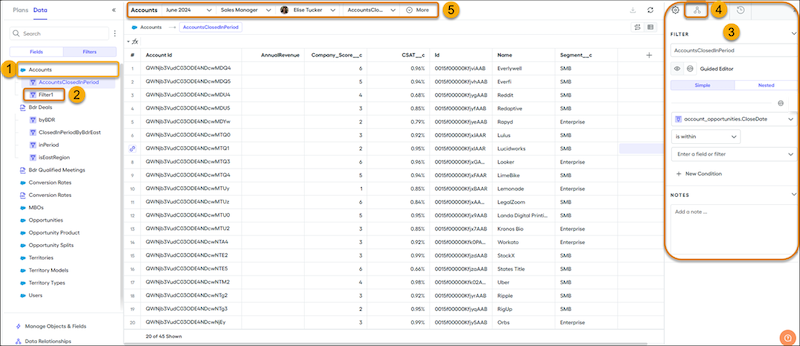
To create folders to group filters by category or plan, hover over an object name (1) and click the three dots. Organize filters in folders with drag and drop.
Selecting a filter (2) shows the filtered data and opens the Filter details panel on the right (3). To view dependencies, click the Dependents/Precedents icon (4).
To validate the results of a filter for different statement periods, plans, and users, use the context selector (5).
- Create a Data Filter in Salesforce Spiff
Create data filters in Salesforce Spiff without writing any code. - Create a Double Filter in Salesforce Spiff
When you’re creating a data filter, there are limitations on how much you can manipulate the data. In these cases, use double filtering. For example, calculated fields aren’t supported in filters, but you can still use a calculated field in a filter by combining thefilter()function, a summary calculation, and thecontains()function. - Data Filter Examples in Salesforce Spiff
The possibilities for data filters in Salesforce Spiff are extensive, depending on the complexity and depth of your data. For best performance, get as specific as possible with a filter before you add a calculation. Simple Guided or Nested Guided mode can help you easily create simple, useful filters. With Nested Guided mode, combine prebuilt data filters together using AND or OR operators. - Returning the First or Last Date from a Data Filter in Salesforce Spiff
Returning the first or last date in a period is helpful when filtering data in Salesforce Spiff. For example, maybe you want to know the date of the first deal closed in a period or the last deal in the quarter. - Examples of Data Filters That Use Worksheet Calculations
With worksheet calculations in Salesforce Spiff data filters, dynamically update filtered data so you analyze, display, and interpret filters more efficiently. - Calculated Fields in Salesforce Spiff Data Filters
To use calculated fields in Salesforce Spiff data filters, the calculated field must be on the same object as the filter. - Accumulator Errors in Salesforce Spiff Data Filters
Accumulation starts with the data filter that a payout rule is based on and the data filter that the accumulator is using. When the accumulated value is referenced in the rule, Salesforce Spiff looks up the record’s accumulated value. An accumulator error occurs when the rule has a record that isn’t in the accumulated filter. - Export Data Filter Results in Salesforce Spiff
Download the results of a data filter in .csv format from the Data Filter results in Salesforce Spiff. - Rollup Filters in Salesforce Spiff
Give credit for closed deals to users who don't own the deal in Salesforce Spiff. For example, let managers receive credit for the deals closed by their team members. Or, a user on one team gets credit deals closed by another team. In Spiff, implement a rollup with a guided rollup, plan assignment custom field, or team function.
