
You are here:
Considerations for Datasheets in Salesforce Spiff
Datasheets let you create and apply calculations to a filtered set of records from your data sources.
Required Editions
| Available in: both Salesforce Classic (not available in all orgs) and Lightning Experience |
| Available in: Enterprise, Unlimited, and Developer Editions |
| Available for an additional cost in: Professional Edition with Web Services API Enabled |
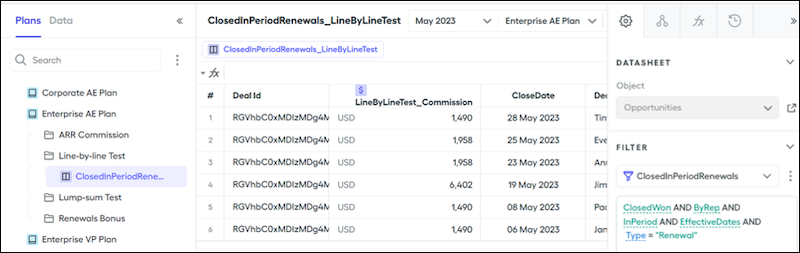
In this example, you have a filter called ClosedInPeriod that returns opportunities closed only by the specified rep in the specified period. You can apply that filter to a datasheet and add calculations that apply only to the data you define.
- Selecting Show Fields from the three dot menu shows all fields on a datasheet under the datasheet name.
- Choosing Hide Column hides the selected field while displaying a number in between columns. The number serves as a quick reference, indicating the quantity of hidden fields within the datasheet. Hovering over the number reveals the names of the hidden fields, and clicking a field unhides it.
- You can view a record’s relationships to other records and objects from a datasheet. Hover over a record on a datasheet, click the chain icon, and then click View Related Records.
- View a list of all created fields that apply to an object from the Data tab.
- Summary calculations typically reside in worksheets. But the datasheet summary row provides a quick and easy way to create summary calculations for your datasheet fields. For example, to find the sum of a rep’s ARR closed within the period, click the summary row beneath the ARR field and select Sum. The datasheet creates a calculation that sums the ARR field. You can also create an average, count, min, or max calculation.
- If you change a calculation, such as from sum to average, the name of the formula is still the same, but the formula and output changes.
- Don’t assign summary fields as payout calculations for line-by-line commission rules. Assigning summary fields as payout calculations causes absent commission fields in rep statements, the inability to trace commission logic, and the inability to create reports with deal information. Instead, assign the commission field to your payout rule so you can see the commission calculated for each deal individually. Assigning the sum of the commission field causes you to lose all line-by-line or per-deal data.
- Use datasheet fields as payout amounts for your rules as often as possible.
Did this article solve your issue?
Let us know so we can improve!
