Calculate an Average Value in Salesforce Spiff Designer
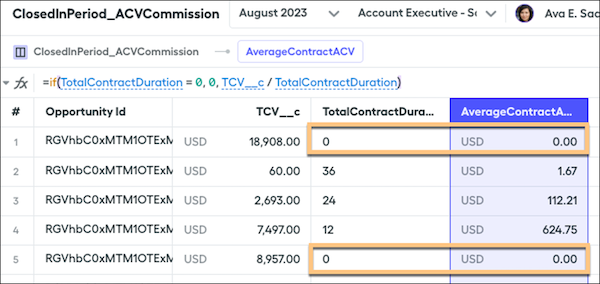
Some companies use averages in commission calculations. For example, companies often pay reps on the average of the total value of the contract, or Annual Contract Value, rather than just the first month's value or the total value. You can create a calculated value for the average in your datasheet based on the value and total duration.
Required Editions
Available in: both Salesforce Classic (not available in all orgs) and Lightning
Experience
Available in: Enterprise, Unlimited, and Developer
Editions
Available for an additional cost in: Professional Edition with Web
Services API Enabled
In this example, calculate the average of the total commission value of a contract.
Find or calculate the total commission value.
If the value is a field in the CRM, make sure that the field is available for use. Hover over the object the field originates from on the Fields tab under Data in Designer. Click the three dots and select Manage Fields.
A list of fields is available on that object. A checkmark means that the field is already available and can be referenced. If the field isn't checked, click the + button to make the field available for use.
In Plans, go to the datasheet where you want to build the rule calculations and add a column for this field by clicking the + button on the far right column.
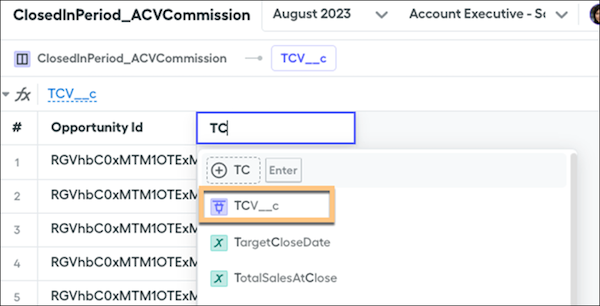
Enter the name of the field to show it in the dropdown menu and select it from the list.
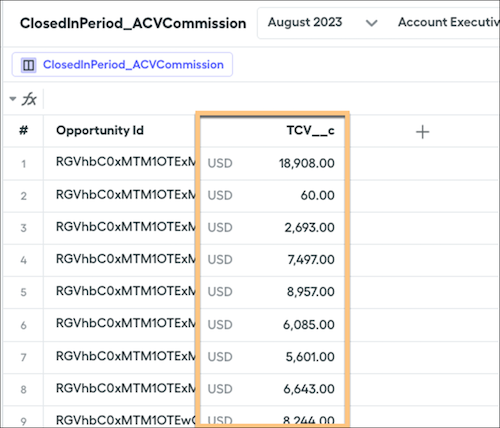
The field populates on your datasheet.
Find or calculate the total duration.
If the CRM has a field for the total contract duration of the deal's contract, you can add that field in the same way you added the total value.
If you have a contract start date and a contract end date, you can use the months_to() function. Create a calculated field called TotalContractDuration and enter this formula, which returns the total duration of the contract in months.
We use three kinds of cookies on our websites: required, functional, and advertising. You can choose whether functional and advertising cookies apply. Click on the different cookie categories to find out more about each category and to change the default settings.
Privacy Statement
Required Cookies
Always Active
Required cookies are necessary for basic website functionality. Some examples include: session cookies needed to transmit the website, authentication cookies, and security cookies.
Functional Cookies
Functional cookies enhance functions, performance, and services on the website. Some examples include: cookies used to analyze site traffic, cookies used for market research, and cookies used to display advertising that is not directed to a particular individual.
Advertising Cookies
Advertising cookies track activity across websites in order to understand a viewer’s interests, and direct them specific marketing. Some examples include: cookies used for remarketing, or interest-based advertising.