
You are here:
Deleting Items in Salesforce Spiff Designer
Avoiding deleting data or elements directly in Salesforce Spiff Designer. Instead, manage changes with effective dates, which can help you preserve data integrity and manage updates without losing historical information.
Required Editions
| Available in: both Salesforce Classic (not available in all orgs) and Lightning Experience |
| Available in: Enterprise, Unlimited, and Developer Editions |
| Available for an additional cost in: Professional Edition with Web Services API Enabled |

Deleting Payout Rules
Deleting payout rules can have unintended consequences and sometimes disrupts your existing compensation structures. Instead of deleting payout rules, use effective dates.
Because you can share payout rules across multiple plans, you can remove a payout rule from one plan but keep the rule in another plan. Right-click the number next to the payout rule in the plan and select Remove From Plan (1). This action removes the rule from the specific plan without deleting it from others.
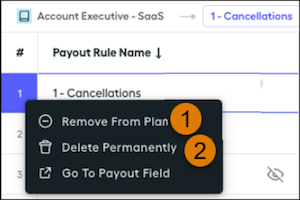
To permanently delete a payout rule from all rules, right-click the number next to the payout rule and select Delete Permanently (2). This action permanently deletes the payout rule, with no option to restore. If the rule is a shared payout rule, deleting the rule affects other plans that use the rule.
After you remove a payout rule from a plan or delete it permanently, the rule is removed from the rep statement during the next recalculation, unless the statements are frozen when the rule is removed. You can recalculate manually or wait for the nightly re-sync.
Deleting Fields
Before you delete fields from your data, consider the impacts of the deletion.
| Items to Delete | How to Delete | Considerations |
|---|---|---|
| Fields in a datasheet | Go to the datasheet where the field is used. Click the field you want to delete and from the dropdown menu, select Remove From Sheet. | This action removes the field from the current datasheet but keeps it available in Salesforce Spiff for use in other areas. We recommend this option for removing fields from a datasheet. |
| Fields in a data filter | Click the three dots next to the field in the left panel of the Data tab and select Delete Field. | This action permanently deletes the field, and it can’t be restored. If the field is used in other calculations, deleting the field affects those calculations. |
| Connector fields | Delete a connector field that's imported from Salesforce or other sources. | This action permanently deletes the field, and it can't be restored. Commission calculations that used the connector field are affected. To fix those calculations, you must reimport the connector field. |
| Fields from in a worksheet | Go to the worksheet where the field is used, right-click the field you want to delete, and select Delete Cell. If you press Delete when a cell is selected, only the field's calculation is removed. The field itself remains available. To delete multiple cells, selecting all the cells you want to delete, right-click, and selecting Delete Cells. |
This action permanently deletes the fields from Spiff and can’t be reversed. |
| Datasheet | Click the three dots next to the datasheet and select Delete Sheet. | This action deletes only the datasheet. All the fields on the datasheet remain available. |
| Worksheet | Click the three dots next to the worksheet and select Delete Sheet. | This action deletes the worksheet and all its fields. |
| Table | Click the three dots next to the table and select Delete Table. | This action deletes the table and affects all calculations that referenced the table. |
| Filter | Click the three dots next to the filter on the Filters tab and select Delete Filter. | This action deletes the filter and affects all other filters or fields that referenced it. Instead of deleting the filter, consider organizing the filters into folders so the filters remain available. |
| Folder | Click the three dots next to the folder and select Delete Folder. | This action permanently deletes all content in the folder, including plans, datasheets, worksheets, worksheet fields, tables, and subfolders. Deleting a folder affects any other calculations or dependencies that referenced any of the items in the folder. |
| Plan | Click the three dots next to the plan and select Delete Plan. | This action permanently deletes all elements in the plan, including datasheets, worksheets, worksheet fields, tables, and subfolders. If there are any frozen statements for any reps on the plan, you can't delete the plan. Instead of deleting the plan, use the plan's effective dates to manage changes. Or, archive the plan. |
