You are here:
Left Panel in Designer UI
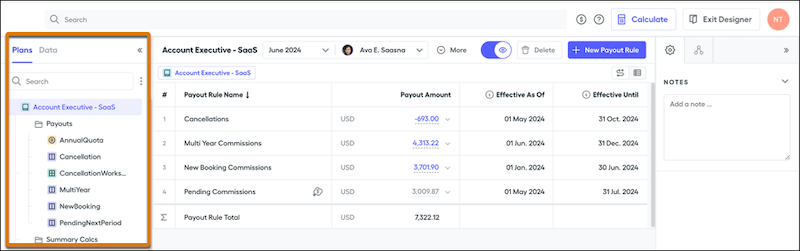
The left panel in Salesforce Spiff Designer contains a list of plans, datasheets, worksheets, and tables that you can create from the options menu near the search bar.
Plans
The Plans tab is selected by default in the left panel when you open Designer. Create plans, sheets, and tables from the three dots near the search bar. To organize sheets and tables, create folders from this menu. Save folders at the top-level outside of any specific plan or under a plan. Create as many folders as needed to help you organize.
Drag folders, sheets, or tables to organize. Access folder options by using the three dots next to each folder.
The search bar in the left panel can help you find any plan, sheet, table, or calculation that’s in the left panel. The global search bar at the top of the screen lets you search for any data object that resides in Designer.
Data
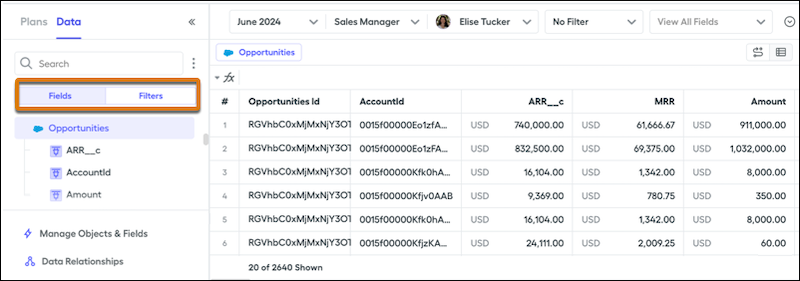
The Fields tab lets you view and interact with objects and their associated fields that are synced from source data. You can also find any datasheet fields you create. You can add or remove fields from your source data with the Manage Objects and Fields option at the bottom of the left panel. Underneath this option, you can also create data relationships between objects.
The Filters tab lets you apply filters to the data flowing in from your CRM or uploads. Similar to taking a spreadsheet in Microsoft Excel or running a report in your CRM, filtering shows only records that fit the defined criteria. For example, you can show only deals closed by a certain rep.