
You are here:
Plans View in Salesforce Spiff Designer
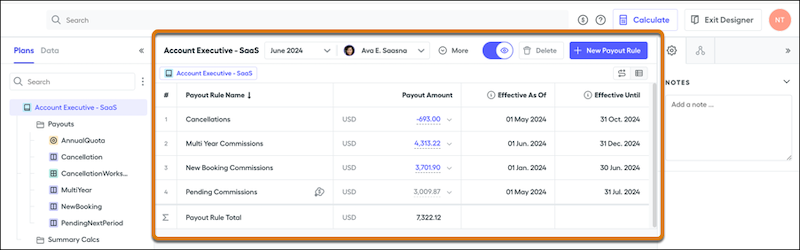
After clicking a plan in the left panel in Salesforce Spiff Designer, the plan view in the center of the screen shows information about the plan.
To view different commission periods or other reps assigned to the plan, use the context selector. The More dropdown menu shows additional plan and rep information. Clicking the number next to a rule name highlights the rule. The right-click menu shows options for deleting the payout rule or removing it from a plan if it’s used in more than one plan. Or you can use the delete option near the context menu. Deleting a payout rule is permanent.
The values in the Payout Amount column come from datasheet or worksheet calculations. To search for or select available calculations, use the dropdown menu in the Payout Amount field.
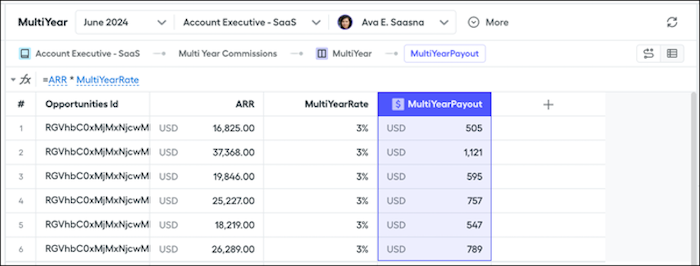
Clicking a value in the Payout Amount column takes you to the formula on the associated datasheet or worksheet. A $ symbol next to the formula name designates it as a Payout Amount.
The Plans view includes these options.
| Option | Description |
|---|---|
| What-If? | Turns a commission rule into a hypothetical calculation that shows reps a potential commission amount without adding it to commission totals. |
| Ghost Rule | Makes a rule invisible to reps and doesn’t add to a rep's commission total. Admins can see potential commission rules in action before affecting rep statements. |
| Trace | Shows a vertical representation of a highlighted rule and its components. |
| Spiff Assistant | Shows an AI-generated explanation of each formula. |
| Plan Assignments | Includes options for adding and editing Effective Dates or other custom field information for the users assigned to the selected plan. Available in the bottom left of the screen. |
| Assign Users | Includes options for adding or removing users from the plan without having to exit Designer. Available in the bottom right of the screen. |
