You are here:
Right Panel in Designer UI
When you work in worksheets, datasheets, lookup tables, or range tables in the Plans tab in Salesforce Spiff Designer, the right panel shows important information related to the rule or calculation you’re currently working on.
The right panel shows these tabs, depending on the selected rule or calculation you’re working on.
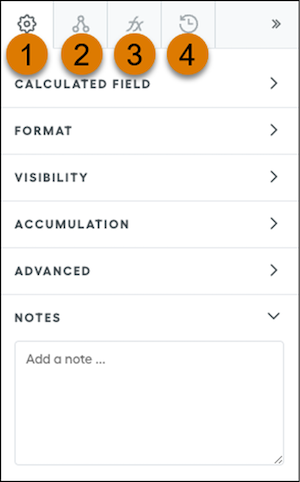
- The Settings tab (1) contains the payout rule or calculation details and settings. The available options change depending on the part of the plan you’re viewing.
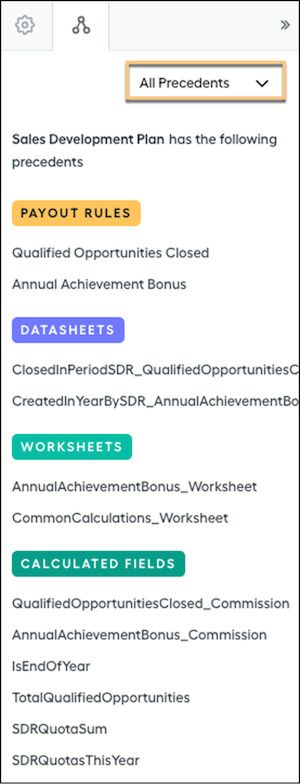
- The Dependents/Precedents tab (2) shows where the rule or calculation is used and referenced.
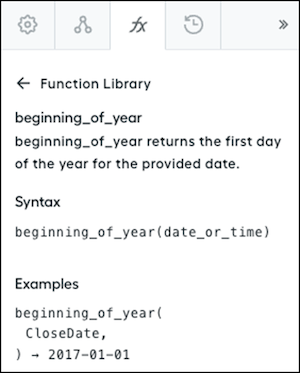
- The Function Library tab (3) lists all Spiff’s available functions.
- The Version History tab (4) shows the version history of the rule or calculation.
See Also
Settings Tab
The options on the Settings tab in the Salesforce Spiff Designer right panel vary depending on what you’re working on.
Settings for a Calculated Field
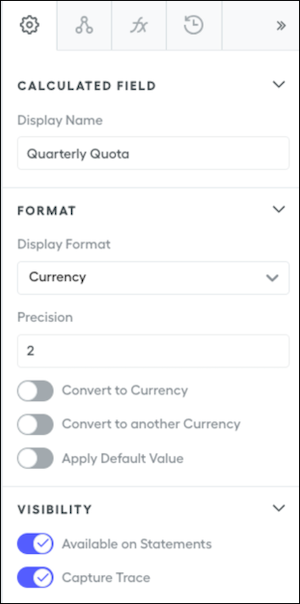
| Option | Description |
|---|---|
| Display Name | How the calculation name appears in the rep statement and in reports. A display name is different from an API name, which is the
field’s system name that must be unique and can’t contain spaces
or certain special characters. A display name is human-readable
and can contain spaces, numbers, emoji, and special characters,
and doesn’t have to be unique. A display can’t be blank, but you
can use a hyphen character ( If you update an API name, Spiff also updates the display name if you leave the default display name unmodified. If you modify a display name so that it no longer matches the API name, any subsequent changes to the API name don’t update the display name. |
| Object | The object that the calculated field belongs to. The calculation applies only to records from the selected object. This option is available only for a calculated field in a datasheet. |
| Create Payout Rule | Options for creating a payout rule from the calculated field, including its name, the plan the rule belongs to, the effective dates, and What-If? or ghost rule status. If the field isn’t a payout calculation already, click Create when you’re finished. If the field is a payout calculation already, these other options are available.
|
| Display Format | How the output of the calculation appears on the rep statement and in reports. Options include currency, date, number, and percent. The display format is required for the calculation output to appear on the rep statement. |
| Precision | The number of decimal places shown for the calculated value, based on the display format. |
| Convert to Currency | The field is a currency value. For information about currency values, see Currency in Salesforce Spiff. |
| Convert to Another Currency | The field’s value can be converted to a different currency. This option is available only when you turn on Convert to Currency first. |
| Apply Default Value | The default value to use for this field before the calculated value is applied. |
| Available on Statements | The calculation can appear in a rep statement and in the Obligations view on a rep statement. By default, this option is turned on. |
| Capture Trace | A rep or admin can trace through the calculation on the statement for this field or for any variable that the field references. See Capture Trace View in Salesforce Spiff. When you turn off Capture Trace, the field isn’t available in these locations, even if the Available on Statements option is turned on.
If the field where Capture Trace is turned off references other fields, the referenced fields aren’t available in these locations, either. If other fields reference the field where Capture Trace is turned off, the other fields remain available in these locations. Only the field where Capture Trace is turned off isn’t available. |
| Commission Estimator | An on-the-fly estimate is available for keeping sales reps motivated to close the deal. As the quote is created or changed, the estimator runs those inputs through the commission plans created in Spiff. Then, the estimator shows the rep the updated projected commission amounts. See Salesforce Spiff Commission Estimator. |
| Accumulated | The field’s value accumulates over a specified set of records. Sorting the records by date provides a running total for the designated period. Use this option in conjunction with a marginal payout function. See Accumulated Variables in Salesforce Spiff. |
| Advanced | For Spiff internal use only. |
Dependents or Precedents Tab
The Dependents or Precedents tab shows where a rule or calculation is used.
By default, the tab shows the rule’s or calculation’s direct dependents or precedents.
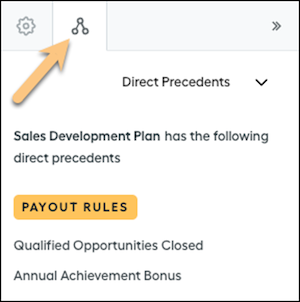
To show all dependents or precedents instead, including other rules or calculations used within the current rule or calculation, use the dropdown menu.
Function Library Tab
The Function Library tab provides a list of all functions that are available to use in Designer.
Search the list, or browse by topic.
Clicking a function shows a description, syntax, and examples.
Version History Tab
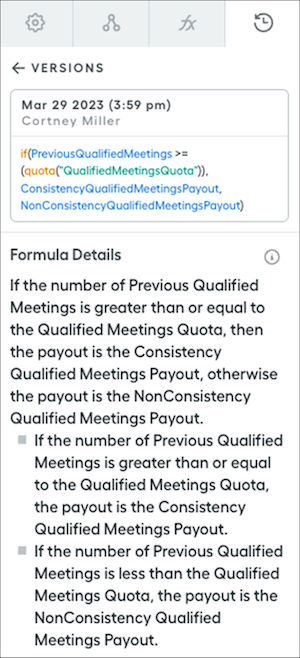
The Version History tab tracks the change history of calculations, data filters, range tables, and lookup tables. Track changes for specific formulas in datasheets and worksheets. Add notes, or generate an AI explanation of a formula with Spiff Assistant.
The tab contains cards with a timestamp for each change in the formula and the user who made the change (1), with the active version at the top.
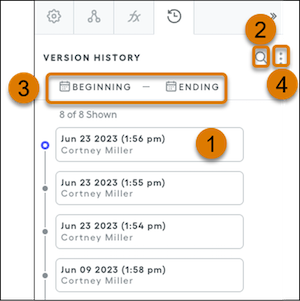
These options are available on the Version History tab.
- Search version history by syntax or keyword (2).
- Filter version history by date range (3).
- Download version history as a .csv file (4), which includes the user, timestamp, and formula used for each version.
- To copy the formula used with a version, click the three dots when hovering over a card and select Copy Syntax.
- To compare the logic for the selected version and the previous version, click the three dots when hovering over a card and select View Diff.
- To leave on a comment on a selected version, click the three dots when hovering over a card and select Add Comment. To tag individual users, enter the @ character first.
- To see more information about a specific formula, click the three dots when hovering over the formula and select Explain Formula.