
You are here:
Add the Commission Estimator Component to Record Details Pages
Add a component to record details pages for showing the Salesforce Spiff Commission Estimator. For quotes, add the component to the Salesforce CPQ Quote details page. For opportunities, add the component to the Opportunity details page.
Required Editions
| Available in: both Salesforce Classic (not available in all orgs) and Lightning Experience |
| Available in: Enterprise, Unlimited, and Developer Editions |
| Available for an additional cost in: Professional Edition with Web Services API Enabled |
| User Permissions Needed | |
|---|---|
| To edit Salesforce record details pages: | (Salesforce) Customize Application |
Add the Component to a Page
- Log in to Salesforce as an admin.
-
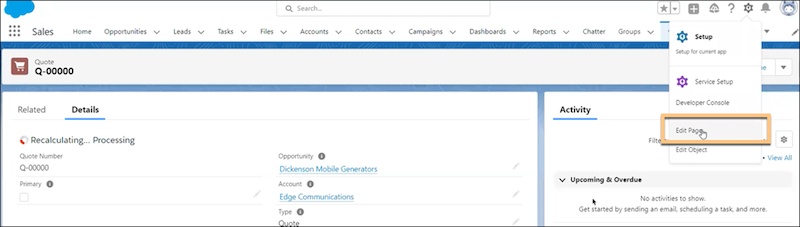
Navigate to a quote or opportunity, click Setup, and select Edit Page.
-
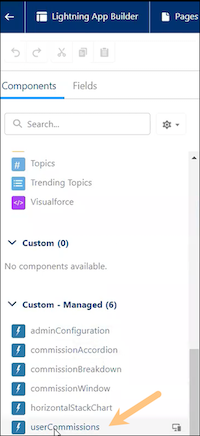
From the Components tab in Lightning App Builder, find the userCommissions component.
-
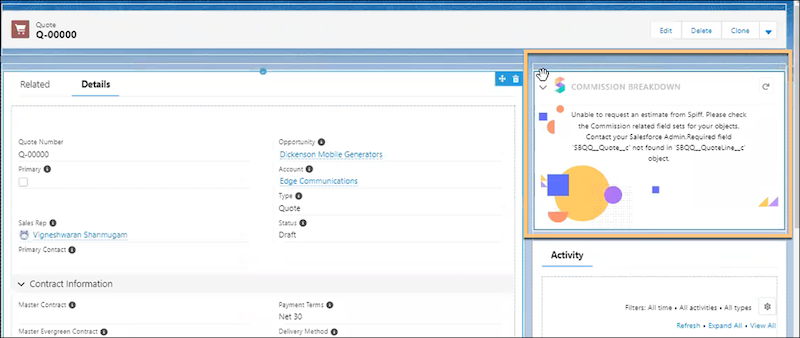
Drag the userCommissions component to the right column of the page.
- In the Quote details page, add the userCommissions component above the Activity component.
- In the Opportunity details page, add the userCommissions component above the Related component.
Configure the userCommissions Component
-
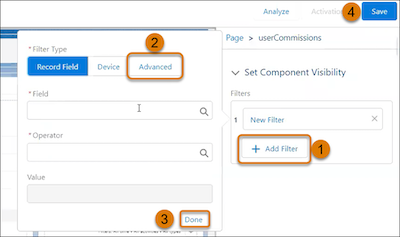
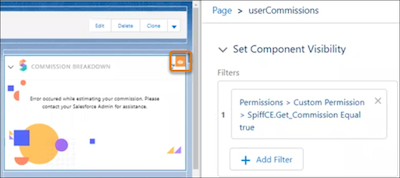
With the component selected, go to Set Component Visibility and click Add Filter.
-
Enter these values.
Filter Type Advanced Field Permissions | Custom Permission | SpiffCE.Get_Commission Operator Equals Value True - Click Done.
-
Confirm that the orange eye icon, which indicates an applied filter, appears on the userCommissions component.
- Save your changes.
Activate and Verify the Page
Activate the page for the users, profiles, and apps as the org default. You can also activate the page for a phone, a desktop app, or both. Then, verify that the page is created in Lightning App Builder.
-
Activate the page.
- Navigate to a quote or opportunity, click Setup, and select Edit Page.
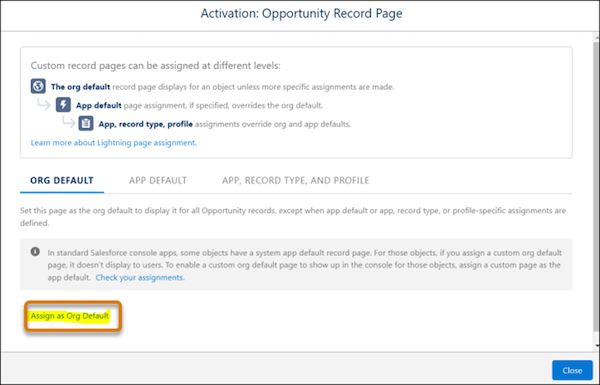
- Click Activation.
-
In the Activation window, click Assign as Org Default.
- In Assign form factor, select Desktop and Phone, and click Next.
- Save your changes.
-
Verify the page.
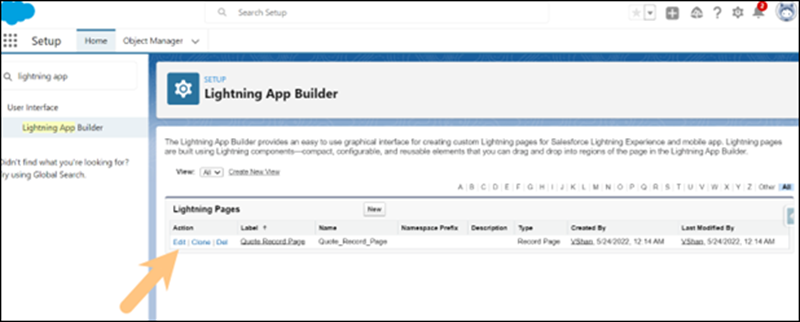
- From Setup, in the Quick Find box, enter User Interface, and then select Lightning App Builder.
- Select any standard or custom Quote or Opportunity record details page where you want to show the commission for a sales user.
-
Click Edit and check that you see the Commission Estimator component.
Did this article solve your issue?
Let us know so we can improve!
