
You are here:
Create a Payout Rule for the Salesforce Spiff Commission Estimator
In some cases, you can reuse the same payout rules in Salesforce Spiff Commission Estimator as you already use for regular commission payouts in Spiff. In other cases, create a separate payout rule specifically for estimations. For example, maybe you don't want to include a What-If? rule on rep commission statements or you configure the estimator for a different object than the regular commission payout rule uses.
Required Editions
| Available in: both Salesforce Classic (not available in all orgs) and Lightning Experience |
| Available in: Enterprise, Unlimited, and Developer Editions |
| Available for an additional cost in: Professional Edition with Web Services API Enabled |
| User Permissions Needed | |
|---|---|
| To create a payout rule: | A Spiff user role with this permission turned on. Designer Configuration: Manage |
To create a separate rule, copy and update a rule that you already created for standard commission payouts. Follow these best practices.
- Name the estimator rule after the original rule, with an Estimated prefix.
- To make sure that other admins don't mistakenly use an estimator-specific formula in a standard commission payout, give the estimator formula a clear, unique name.
- Test estimated commisions with What-If? and ghost rules.
- When you generate commission rates, Spiff Commission Estimator has only one deal in the calculation. You can use any worksheet fields that you've already created for current year-to-date achievements, instead of creating new accumulations per line.
- Customize data filters to include only open opportunities or quotes. Exclude closed opportunities so that they don't show up in What-If? rules.
- If your rule uses fields on an object other than Quote or Quote Line, add those fields to the Quote or Quote Line objects. Data that isn't native to these objects is synced from Salesforce and delayed.
-
Verify that your rule's objects and data are ready.
-
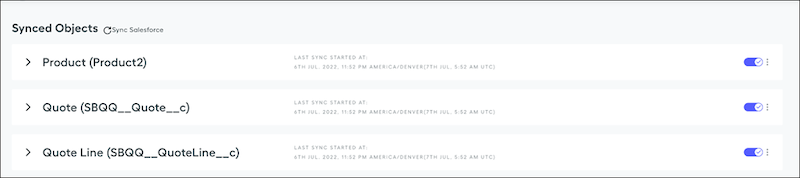
In Designer, click the Data tab, and then click Manage Objects & Fields. Verify that both the Quote and Quote Line objects are added from Salesforce.
-
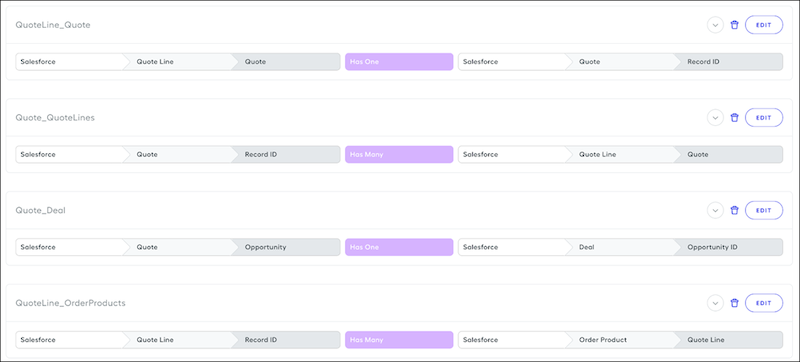
Verify that relationships for data filters are established between objects that your rule depends on.
-
In Designer, click the Data tab, and then click Manage Objects & Fields. Verify that both the Quote and Quote Line objects are added from Salesforce.
- From the payout rules available in Spiff plans, find a rule that you want to copy for use in the Spiff Commission Estimator.
- Create data filters that use Quote and Quote Line data from Salesforce.
- In Designer, clone the rule that you want to use with the Spiff Commission Estimator.
-
Update the cloned rule.
- Update the rule with a meaningful name that can appear in the Spiff Commission Estimator.
- If you want the rule to appear in rep commission statements, turn on What-If?. Otherwise, turn on Ghost.
- If you want the rule to appear in the Spiff Commission Estimator, turn on Commission Estimator.
- Update all payout rule calculations to reference the Quote and Quote Line data filters and to use Quote and Quote Line fields.
- Sync the Quote and Quote Line fields from Salesforce.
- To test the new rule, recaculate the statement for a rep who's also a Spiff Commission Estimator user.
- To bring the datasheet fields to the obligation record, add visible fields to the rule's final payout calculation.
Did this article solve your issue?
Let us know so we can improve!
