
You are here:
Imported Data in Salesforce Spiff
You can manually import data into Salesforce Spiff, in addition to data synced from external sources, such as Salesforce. You can view your imported data in Data Sources and Designer.
Required Editions
| Available in: both Salesforce Classic (not available in all orgs) and Lightning Experience |
| Available in: Enterprise, Unlimited, and Developer Editions |
| Available for an additional cost in: Professional Edition with Web Services API Enabled |
You can view imported records in Data Sources. Go to Data Sources, then click the table name from the Data Imports section. To view a record’s details, click the record. You can access any record that has been imported by either searching or scrolling.
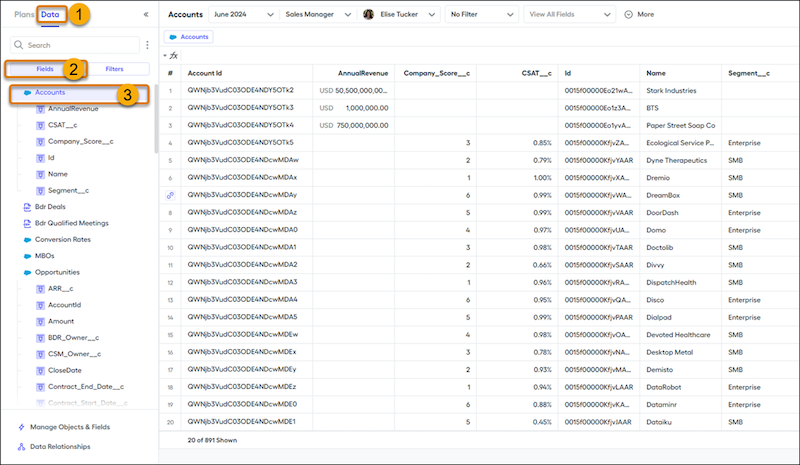
You can also access imported data in Designer. Navigate to Designer, then to the Fields tab (2) under Data (1). Click a table or imported field (3) to preview records in the center panel.
CreatedAt and UpdatedAt Fields
On every imported record, Spiff automatically adds the CreatedAt and UpdatedAt fields, which indicate when a manually imported record was created or last updated, respectively. These fields are available in Data Sources, filters, and Payout Rules. To make these fields available for use in Designer, connect them in Designer. In Designer, click the three dots located in the top right, then select Sync/Unsync Objects & Fields. View any of the fields on synced objects by clicking the arrow (>) next to the object name. To connect the CreatedAt or UpdatedAt field, click the plus icon (+) in the last column.
After these fields are connected, you can reference either when creating a data filter. For example, maybe you want to easily find all records from an object that were uploaded during a certain time frame.
You can also use these fields in Payout Rules. Include these fields in statements or add them in custom reports.
- Primary Keys in Salesforce Spiff
A primary key helps Salesforce Spiff differentiate records based on a unique ID and determine whether to add new rows or update existing rows on new imports. This value must be unique for each record. - Imported Tables View in Salesforce Spiff
Review records that you imported into Salesforce Spiff from the Imported Tables section of the Data Sources page. - Upload Data in the Data Sources Page in Salesforce Spiff
To manually upload records into Salesforce Spiff, import .xlsx or .csv files that represent users, deals, accounts, or other objects. - Handle Null Values for Imported Data in Salesforce Spiff
Sometimes when you sync or import data in Salesforce Spiff, fields contain a null value. When Spiff calculates commissions, null values can cause issues because Spiff expects a value for a field, even if the value is zero. To handle null values with imported data, apply a default value for the field in all plans and rules. To handle null values for a specific rule or plan, first create a field on the rule or plan and then specify null handling for that field. - Troubleshoot Errors in Imported Data in Salesforce Spiff
If errors occur when you import data in Salesforce Spiff, download and review the error logs from the Import History tab in the Data Sources page. - Import Currency Rates in Salesforce Spiff
If you don't sync currency rates from Salesforce in Salesforce Spiff, you can specify your own conversation rate from your corporate currency setting in Spiff to other currencies. Download, modify, and upload a template currency rate file. - Soft-Delete Imported Records in Salesforce Spiff
To exclude imported records from commission calculations in Salesforce Spiff but keep the records available and searchable, you can soft-delete the records. For example, maybe you want to keep some records available for audit purposes, so you don't want to delete them permanently. - Import Adjustments and Create an Adjustment Rule in Salesforce Spiff
Adjust the total commission amount for a period in Salesforce Spiff. To make a large number of adjustments at once, upload a file that includes all the adjustment records. Configure a rule so that the adjustment data in the upload file applies to the appropriate reps in the appropriate period.
