
You are here:
Import Adjustments and Create an Adjustment Rule in Salesforce Spiff
Adjust the total commission amount for a period in Salesforce Spiff. To make a large number of adjustments at once, upload a file that includes all the adjustment records. Configure a rule so that the adjustment data in the upload file applies to the appropriate reps in the appropriate period.
Required Editions
| Available in: both Salesforce Classic (not available in all orgs) and Lightning Experience |
| Available in: Enterprise, Unlimited, and Developer Editions |
| Available for an additional cost in: Professional Edition with Web Services API Enabled |
| User Permissions Needed | |
|---|---|
| To import adjustments and create an adjustment rule: | A Spiff user role with this permission turned on. Designer Configuration: Manage |
-
Prepare a Microsoft Excel file that contains the adjustment records. Name the sheet with the name of the table that you want to update in Spiff and include these required fields.
external_id A unique ID for each record. If you're updating an existing record, use the same external_id. Date The date for the statement period that the adjustment applies to. SalesRepId The external ID of the rep that the adjustment applies to. Look up a rep's external ID from the Users page From the Admin menu. Amount The adjustment amount for the period, either positive or negative. Optionally, add a Comment field that explains the reason for the adjustment, which can be useful for future audits. Add other optional fields that you want to upload. - Upload the file in Spiff.
-
In Designer, go to Manage Objects & Fields, select the Adjustment object, and click the + icon next to each field so that they're available for use.
This step is required only for new objects and fields that you aren't already using.
-
In Designer, create these data filters for filtering the adjustment records by rep and statement period.
Adjustments_ByRep Returns only adjustments for the rep whose statement you're updating. Adjustments_InPeriod Returns only adjustments that apply to the current statement period. Adjustments_ByRepInPeriod Joins the rep and period data filters. -
Create a payout rule that references adjustment records and amounts in rep statements.
See Create a Payout Rule.
- Select the Adjustments_ByRepInPeriod data filter.
- In the formula, enter Amount, which is the name of the field in the upload file that contains the adjustment amounts for each record.
-
To include other optional fields from the adjustment record that you want to show in statements, such as Date or Comment, add a calculation named StatementFields.
if(Date, 0, 0) + if(Comment, 0, 0)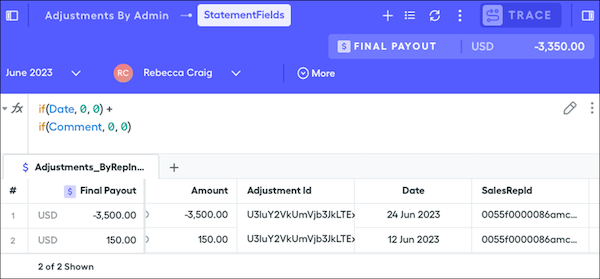
- Recalculate rep statements.
Did this article solve your issue?
Let us know so we can improve!
