
You are here:
Imported Tables View in Salesforce Spiff
Review records that you imported into Salesforce Spiff from the Imported Tables section of the Data Sources page.
Required Editions
| Available in: both Salesforce Classic (not available in all orgs) and Lightning Experience |
| Available in: Enterprise, Unlimited, and Developer Editions |
| Available for an additional cost in: Professional Edition with Web Services API Enabled |
Go to the Data Imports section of the Data Sources page and click the Imported Tables header. Or, click View Results after your data imports successfully.
Overview Tab
The Overview tab shows the name of each data table with a time stamp for when the table was most recently updated. The Quotas and Quota Types tables are included by default, even if you haven't imported quotas or quota types.
To export a template of the table or to export all records from the table, hover over a table and click the three dots. The export options go to the export history tab, where you can download the export. The template helps you easily import new data for the same table later by providing consistent field names.
Depending on the table, the template can include normalized fields that weren't included in the original upload. For example, for a table of accounts data, the template includes a soft_deleted field that isn't required for the original upload. If you download all records from a table, the soft_deleted field indicates whether a record was deleted.
Import History Tab
The Import History tab shows every file imported into Spiff, including the name of the file, a summary of how many records were added or rejected, the import date, who imported the file, and the outcome of the import.
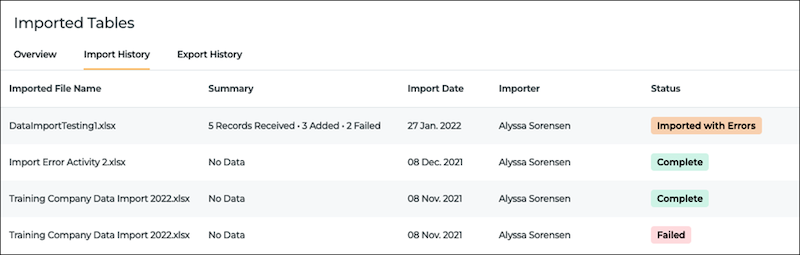
For each file in the history, click the three dots at the end of the row to download these files.
- The original file.
- An errors file that lists records that weren't imported. See Troubleshoot Errors in Imported Data in Salesforce Spiff.
- A duplicates file that lists records that were identified as duplicates. This file can help you locate any unintentional changes in your data. Each duplicate record also indicates if it was skipped, overridden, or updated.
If the import had no errors or duplicates, only the original file is downloaded.
Export History Tab
The Export History tab lists the exports made from the Imported Tables view. You can download an export as often as you want, or you can delete an export permanently.
