
You are here:
Mobile App for Salesforce Spiff
View commission details on the go with the Salesforce Spiff app for mobile devices.
Required Editions
| Available in: both Salesforce Classic (not available in all orgs) and Lightning Experience |
| Available in: Enterprise, Unlimited, and Developer Editions |
| Available for an additional cost in: Professional Edition with Web Services API Enabled |
Installing the App
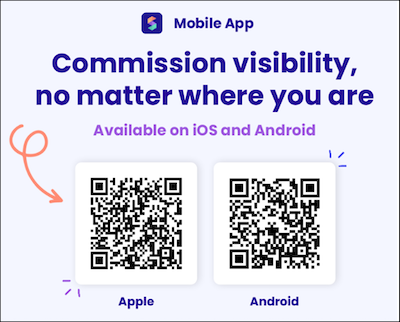
To install the app, scan the code.
Login Location
When you sign in to the mobile app, tap Change Location, select the appropriate location depending on your region, and tap Continue.
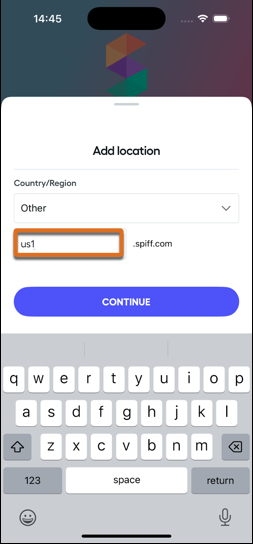
- If you’re in the US, select Other and enter us1 for the subdomain.
- If you’re in the EU, select Other and enter eu1 for the subdomain.
Limitations
The mobile app has a few limitations.
- If you have multiple plans, the app shows the first alphabetical plan. To select a different plan, click the plan name.
- The app shows one statement period at a time.
- If you have multiple statement metrics, swipe to view each metric. The app doesn't support payout rule metrics.
Deals Tab
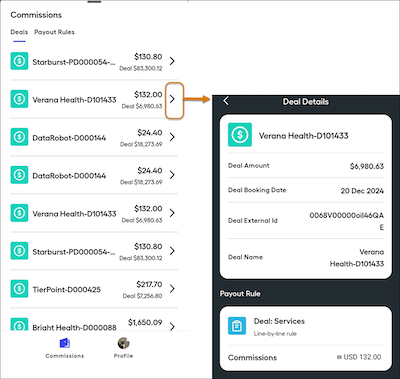
The Deals tab in the Commissions view shows all deals, regardless of payout rule, with the most recent deal listed first.

When a deal is affected by a line-by-line rule only, the deal shows the payout value. If a deal is affected by a lump-sum rule, the individual commission value can’t be calculated and shows a blank value. If the total deal amount is available, that amount appears below the payout value. Tap on a deal for more details.
Payout Rules Tab
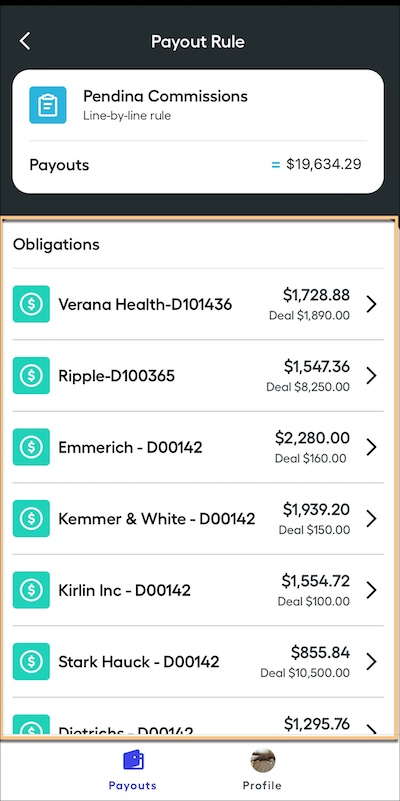
The Payout Rules tab in the Commissions view shows payout rules associated with the selected plan. Tap on a payout rule for more details about the rule, including all the details affected by the rule. If the payout rule is a lump-sum rule, only the total commission amount is available.
Statements
The app shows a banner when a statement is ready for approval.
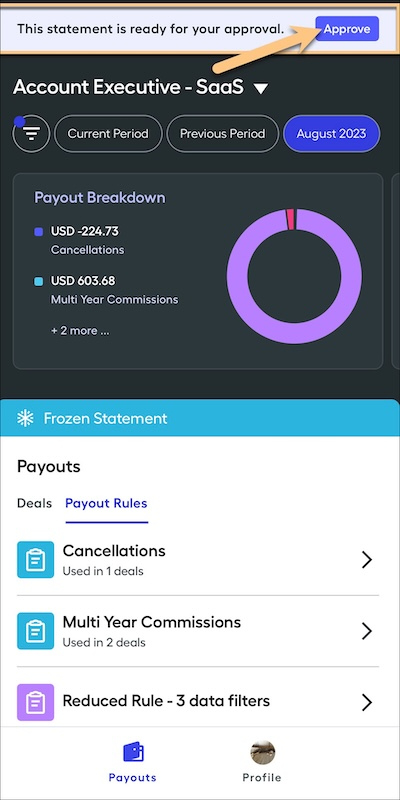
A statement is frozen when approval is requested. If an admin unfreezes a statement, the approval process starts over.
The banner shows other messages when the statement is waiting on other approvals or when all approvers have approved the statement.
Language
To change the app's display language, go to your profile, tap Edit Profile, and then tap Language.
