
You are here:
Personal Settings in Salesforce Spiff
Change your password, grant access to your environment to Support personnel, and set up notifications and preferred UI language.
Required Editions
| Available in: both Salesforce Classic (not available in all orgs) and Lightning Experience |
| Available in: Enterprise, Unlimited, and Developer Editions |
| Available for an additional cost in: Professional Edition with Web Services API Enabled |
To manage your personal settings, click your avatar or initials in the top-right corner of the app.
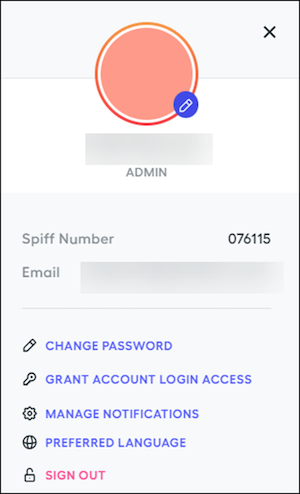
These options are available.
| Option | Description |
|---|---|
| Change Password | Change your password every 90 days. A password must be at least 8 characters long and include at least one lowercase letter, one special character, one uppercase letter, and one digit. |
| Grant Account Login Access | Give Support personnel access to your environment for a limited period. The access permissions are the same as yours. |
| Manage Notifications | Set up email, in-app, and Slack notifications. |
| Preferred Language | Set up your preferred UI language. The language setting doesn’t change the UI language of Designer. |
- Grant or Revoke Account Login Access in Salesforce Spiff
Salesforce Support or Professional Services teams sometimes need access to your Salesforce Spiff environment. To protect your data, these users can access your Spiff environment only when a consenting user in your organization grants permission, and they can access only the same data that the consenting user can access. For example, a rep can't grant admin permissions to a Support user. This permission is valid for only a specific period of time. This setting is available to all user roles. - Specify Your Preferred Language in Salesforce Spiff
Navigate Salesforce Spiff in your preferred language, except Designer, which is available only in English. Supported languages for all other parts of the app include English, French, German, Japanese, Spanish, and Portuguese. This setting is available to all Spiff roles. - Notifications in Salesforce Spiff
Collaboration and transparency are essential for every successful sales team. Salesforce Spiff supports in-app, email, and Slack notifications for comments and approvals. - Manage Notifications in Salesforce Spiff
Receive notifications by email, in-app, or in Slack for activity in Salesforce Spiff. Receive notifications for comments, statement approvals, and changes in ticket status. Admin users can also receive notifications for new tickets.
Did this article solve your issue?
Let us know so we can improve!
