You are here:
Considerations for Creating and Managing Reports in Salesforce Spiff
Reports in Salesforce Spiff can have gaps and performance issues due to frozen statements, the amount of data you're working with, and the rules you're using.
Required Editions
| Available in: both Salesforce Classic (not available in all orgs) and Lightning Experience |
| Available in: Enterprise, Unlimited, and Developer Editions |
| Available for an additional cost in: Professional Edition with Web Services API Enabled |
Data from Frozen Statements
Reports can reference metrics and fields from a statement only if calculations occurred before the statement was frozen.
Maybe you want to add a calculation like YTD Sales and create a report that includes that data, including data for past frozen statements. But because that calculation was added after the statement was calculated, the calculation isn’t included in the statement's trace. That data isn't available for reports.
To add new fields in reports for frozen statements, consider creating a hidden plan that duplicates another plan. This action creates parallel statements that are unfrozen and available for recalculation.
Capture Trace
When you turn off Capture Trace for a calculated field, the field isn't available in Spiff reports, including report exports.
If the field where Capture Trace is turned off references other fields, the referenced fields aren’t available in these locations, either.
If other fields reference the field where Capture Trace is turned off, the other fields remain available in these locations. Only the field where Capture Trace is turned off isn’t available.
Previewing Data
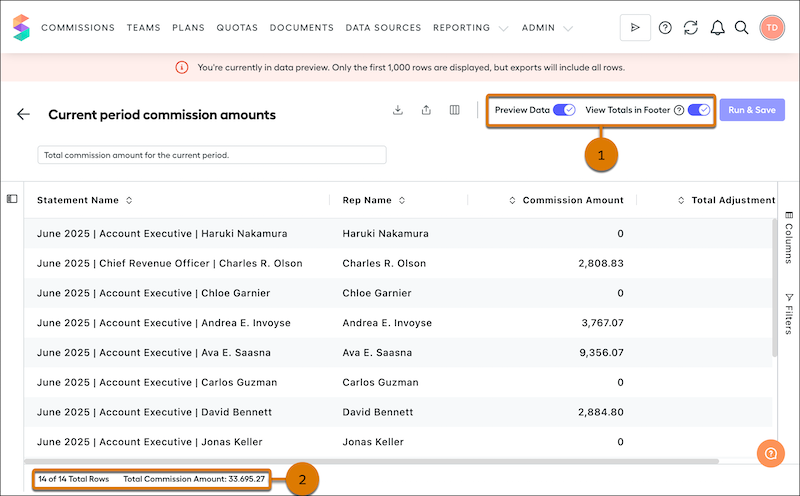
Custom reports are packed with data, which can slow down interactions with the report. To improve performance, turn on Preview Data in the top-right corner. Then, click Run & Save.
When preview mode is on, a banner informs you that only the first 1,000 rows are shown, but all rows are included in exports.
Empty Fields in Obligation Reports
After you click Run & Save in an obligation report, some columns can show blank values, even when the data indicator shows that the field is healthy.
The most likely cause is that the calculation is used in only one rule, not in other rules in the report. When you’re scrolling through the report, only obligations for that rule have the commission rate field populated. Obligations for another rule are blank because that rule doesn’t use the calculation. A field must be used in the rule calculation to appear for the obligations from that rule. This behavior is true for all of the calculations or connector fields you want to show in a report or a rep statement.
Supported Data Types
You can add only Currency, Date, Number, or Percent fields to a report. If a field you want to add is visible in a statement but not available when you create a report, check the field's data type in Designer.
Metric Card Report Calculations
If you're creating a report for the metrics cards in a statement, choose Average instead of Sum. These values are usually already combined over many records. The Sum option is best for calculations shown as columns on the statement. These calculations are called calculated fields, and they usually haven’t been aggregated.
Sarbanes-Oxley (SOX) Act Compliance
Spiff reports, including expense reports and the Leader dashboard, comply with SOX requirements for transparency in financial reporting. For full compliance, turn on Preview Data and then turn on View Totals in Footer in the top-right corner (1). This option shows the total number of rows in the report and the total value of the Commission Amount column (2).