
You are here:
Include Freeze Status in Custom Reports in Salesforce Spiff
In custom statement reports or obligation reports in Salesforce Spiff, show a time stamp for when statements were frozen and include the name of the user who froze them.
Required Editions
| Available in: both Salesforce Classic (not available in all orgs) and Lightning Experience |
| Available in: Enterprise, Unlimited, and Developer Editions |
| Available for an additional cost in: Professional Edition with Web Services API Enabled |
| User Permissions Needed | |
|---|---|
| To edit a report: | A Spiff user role with this permission turned on. Custom Reports: Edit |
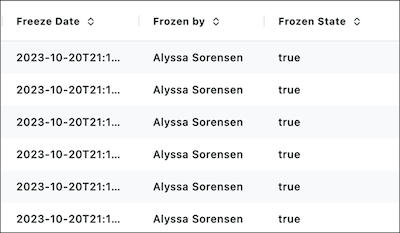
These values are recorded in the System Activity log. These fields related to freeze data are available to add to a report.
| Field | Description |
|---|---|
| Freeze Date | The Date & Time value when a statement was frozen. This field shows data in the report only when the statement is frozen. |
| Frozen by | The name of the user who froze the statement. This field shows data in the report only when the statement is frozen. |
| Frozen State | A Boolean that's true when the record is related to a frozen statement and false when the record is related to an unfrozen statement. |
The Freeze Date and Frozen by fields only show data when the statement is frozen.
- On the Reporting tab, click Reports, and create or edit a statement report or obligation report.
-
Add the frozen status fields.
- Click the column icon next to Run & Save and search for a field.
- Select a field and click the + icon, and then click Apply.
- Repeat these steps for the other fields.
- Click Run & Save.
Did this article solve your issue?
Let us know so we can improve!
