You are here:
Requirements for Sharing Reports and Dashboards in Salesforce Spiff
Some roles in Salesforce Spiff have permission to view, edit, and share custom reports and dashboards.
Required Editions
| Available in: both Salesforce Classic (not available in all orgs) and Lightning Experience |
| Available in: Enterprise, Unlimited, and Developer Editions |
| Available for an additional cost in: Professional Edition with Web Services API Enabled |
Limits for Default Roles
Users with the default Company Admin or Finance role have permission to view and share standard reports and to view, edit, and share all custom reports and dashboards.
Users with the default Editing Manager or Manager role can view standard and custom reports and receive reports that have been shared. These users don’t have any default dashboards available to them, unless a dashboard was shared with them. They can’t view accounting reports or view information in reports or dashboards for users who aren't members of teams they manage.
For example, if a manager supervises Team B but a report for Teams A, B, and C is shared with them, the manager can see data for only Team B in the shared report. If the report is shared with another manager with rights to Teams A and C only, then that manager can see data for Teams A and C only.
Options for Custom Roles
To customize the level of access that a role has to reports and dashboards, create a custom role. For some permissions within the custom role, specify whether the role has access to data for only teams they manage or data for the entire company. For example, if you turn on Custom Reports: Edit in a custom role, specify the scope of reports they can edit. See Create a Custom Role in Salesforce Spiff.
Sharing a Custom Table Report
Users who have the Reports: Share permission turned on, including users with the default Company Admin or Finance role, can share a custom report from the Custom Reports tab. Click the three-dot menu next to a report and select Share, where you can add users who have the Reports: Receive permission turned on, including users with the default Manager or Editing Manager role.
Sharing a Dashboard
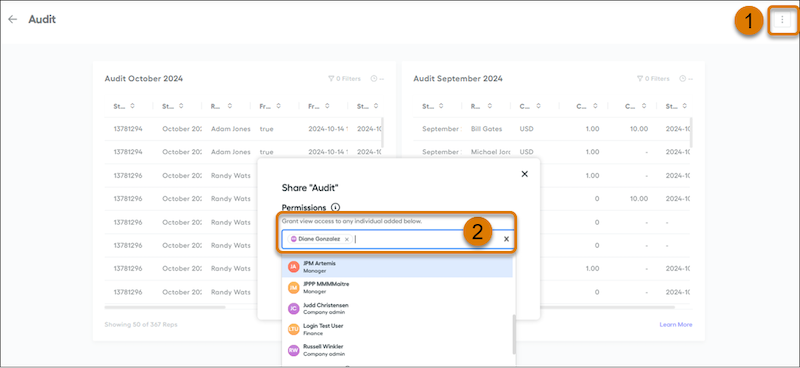
Users who have the Reports: Share permission turned on, including users with the default Company Admin or Finance role, can share a dashboard when the dashboard is open. Click the three-dot menu on the dashboard (1) and select Share, where you can add users who have the Reports: Receive permission turned on, including users with the default Manager or Editing Manager role (2).