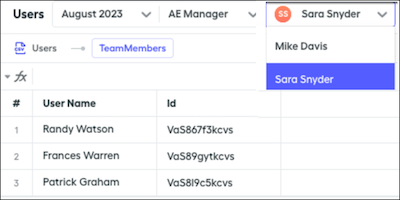
With a rollup filter of users that belong to the same team in Salesforce Spiff, you can calculate the number of team members when a plan component requires splitting an element equally across the team members. Or, check how many team members achieve quota for a component of a manager plan.
Required Editions
Available in: both Salesforce Classic (not available in all orgs) and Lightning
Experience
Available in: Enterprise, Unlimited, and Developer
Editions
Available for an additional cost in: Professional Edition with Web
Services API Enabled
Click the three dots next to the Users object and select New Rollup Filter.
Select how you want to credit the rollup and click Next.
Save your changes.
Select a time period.
The rollup filter provides a dynamic list of team members for all team leads, and you can reference this list in a datasheet for calculations and plan components.
Did this article solve your issue?
Let us know so we can improve!
Loading
Salesforce Help | Article
Cookie Consent Manager
General Information
Required Cookies
Functional Cookies
Advertising Cookies
General Information
We use three kinds of cookies on our websites: required, functional, and advertising. You can choose whether functional and advertising cookies apply. Click on the different cookie categories to find out more about each category and to change the default settings.
Privacy Statement
Required Cookies
Always Active
Required cookies are necessary for basic website functionality. Some examples include: session cookies needed to transmit the website, authentication cookies, and security cookies.
Functional Cookies
Functional cookies enhance functions, performance, and services on the website. Some examples include: cookies used to analyze site traffic, cookies used for market research, and cookies used to display advertising that is not directed to a particular individual.
Advertising Cookies
Advertising cookies track activity across websites in order to understand a viewer’s interests, and direct them specific marketing. Some examples include: cookies used for remarketing, or interest-based advertising.