You are here:
Create Management by Objective Rules
Management by objective (MBO) is a management system that measures an individual's performance against specific targets or goals. You can implement an MBO rule in Salesforce Spiff and handle your company's unique requirements. Typically, an MBO requires manual data to complete the calculation, such as a performance review score from a manager.
Required Editions
| Available in: both Salesforce Classic (not available in all orgs) and Lightning Experience |
| Available in: Enterprise, Unlimited, and Developer Editions |
| Available for an additional cost in: Professional Edition with Web Services API Enabled |
For example, a sales manager assesses a rep's performance on a scale from 1 to 10. If the rep earns a 9 for the quarter, that score is input manually, not calculated by a CRM or other tool. Spiff supports entering performance evaluation scores directly, or you can upload performance scores in a spreadsheet.
The rep receives full target compensation by achieving 100% completion on three performance objectives for the year. Each goal is weighted against the rep's target compensation. Adding all three objectives equals 100% of the target compensation. The rep can receive a performance score from 0% to 100% on each objective. Spiff calculates payout by multiplying the full target compensation score by the performance objective weight and the performance score.
| Goal | Weight |
|---|---|
| Increase sales by 10% | 20% of target compensation |
| Increase upsells by 15% | 30% of target compensation |
| Maintain retention at 97% or more | 50% of target compensation |
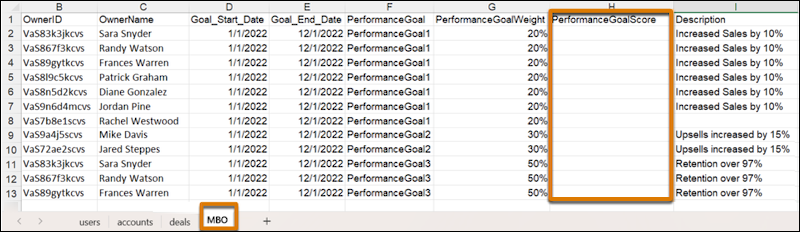
To implement this example, you can uplaod a new object, MBO, with these fields.
- OwnerID
- Goal_End_Date
- PerformanceGoal
- PerformanceGoalWeight
- PerformanceGoalScore
Add values for all fields, except PerformanceGoalScore, which sales managers enter manually.
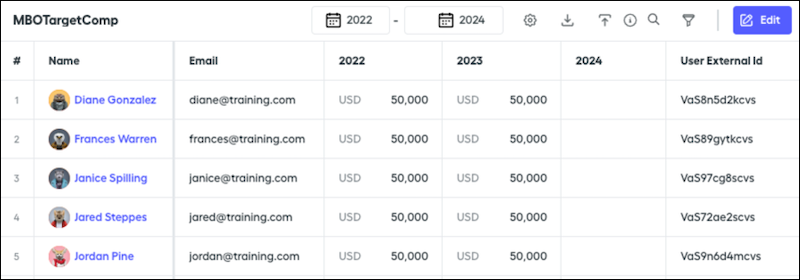
To implement target compensation for meeting the plan objectives, create a quota table and assign the target compensation for each rep across previous years, quarters, and statement periods.
Create an MBO Rule
To implement an MBO rule, create a line-by-line rule so that each MBO has its own payout line on the rep's statement.
Required Editions
| Available in: both Salesforce Classic (not available in all orgs) and Lightning Experience |
| Available in: Enterprise, Unlimited, and Developer Editions |
| Available for an additional cost in: Professional Edition with Web Services API Enabled |
| User Permissions Needed | |
|---|---|
| To create a line-by-line rule: | A Spiff user role with this permission turned on. Designer Configuration: Manage |
Use these data filters for this example.
- An InYear_MBO data filter that uses the calendar year and the Goal_End_Date field.
- A ByRep_MBO data filter that uses the OwnerID field.
- A ByRepInYear_MBO data filter that combines the previous filters.
-
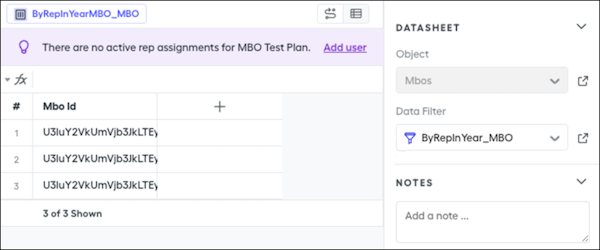
Create a datasheet named ByRepInYearMBO_MBO and select the ByRepInYearMBO data filter.
-
Create a worksheet calculation for the payout formula.
MBO Target Compensation × Goal Weight × Performance Score -
Create a worksheet calculation named MBOTargetComp that references the target compensation from the quota table.
=quota("MBOTargetComp")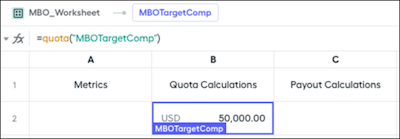
-
Create three worksheet calculations for specifying the weight of each performance objective. Format each calculation as a percent.
Goal1Weight 20% Goal2Weight 30% Goal3Weight 50% 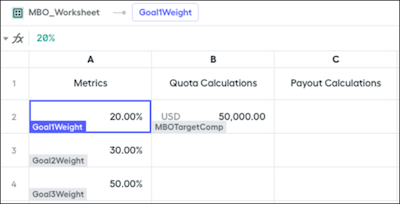
-
Create a calculated field, GoalWeight, on the datasheet. Enter the summary calculations you created to determine the appropriate rate for each line.
=if(PerformanceGoal = "PerformanceGoal1", MBO_Worksheet!Goal1Weight, if(PerformanceGoal = "PerformanceGoal2", MBO_Worksheet!Goal2Weight, if(PerformanceGoal = "PerformanceGoal3", MBO_Worksheet!Goal3Weight, 0)))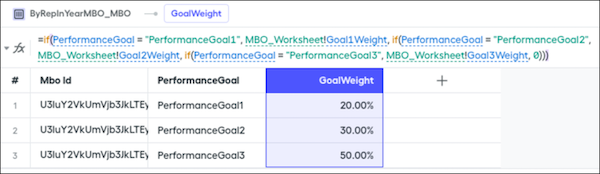
-
Create three worksheet calculations for entering performance goal scores, assign a default value of 0 to each calculation, and format each calculation as a percent.
Admins enter performance scores manually after a score for each rep is determined. If there are a large number of reps, you can upload a spreadsheet with multiple scores, or you can enter performance scores in a quota table. In this example, the calculations become metric cards that admins can edit.
PerformanceScore1 0% PerformanceScore2 0% PerformanceScore3 0% 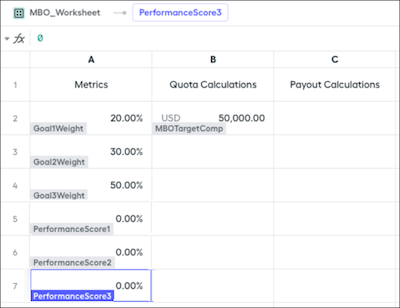
-
Create a calculated field, PerformanceScore, on the datasheet. Enter the summary calculations you created to determine the appropriate rate for each line.
=if(PerformanceGoal = "PerformanceGoal1", MBO_Worksheet!PerformanceScore1, if(PerformanceGoal = "PerformanceGoal2", MBO_Worksheet!PerformanceScore2, if(PerformanceGoal = "PerformanceGoal3", MBO_Worksheet!PerformanceScore3, 0)))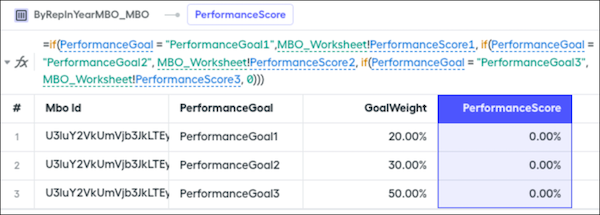
-
Create a calculated field, MBO_Commission, on the datasheet. Combine all three components of the formula for determining the MBO commission.
=MBO_Worksheet!MBOTargetComp * GoalWeight * PerformanceScore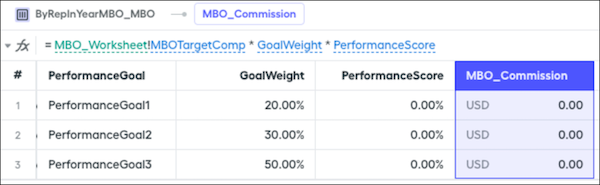
Go back to your plan and add the MBO payout rules with the MBO_Commission field as your payout amount.
Create an MBO Statement
Statements that include MBO metrics clearly outline specific, measurable goals that align with your company's objectives so reps understand their targets and how they contribute to overall success.
Required Editions
| Available in: both Salesforce Classic (not available in all orgs) and Lightning Experience |
| Available in: Enterprise, Unlimited, and Developer Editions |
| Available for an additional cost in: Professional Edition with Web Services API Enabled |
| User Permissions Needed | |
|---|---|
| To add MBO metrics to a statement: | A Spiff user role with these permissions turned on.
|
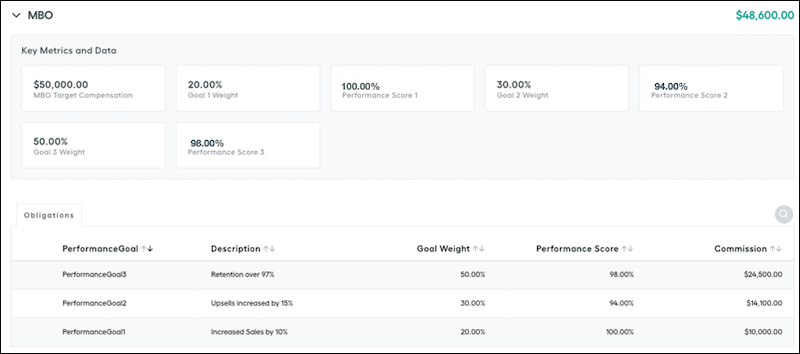
- Add metric cards to a statement.
-
Edit the performance score metrics.
-
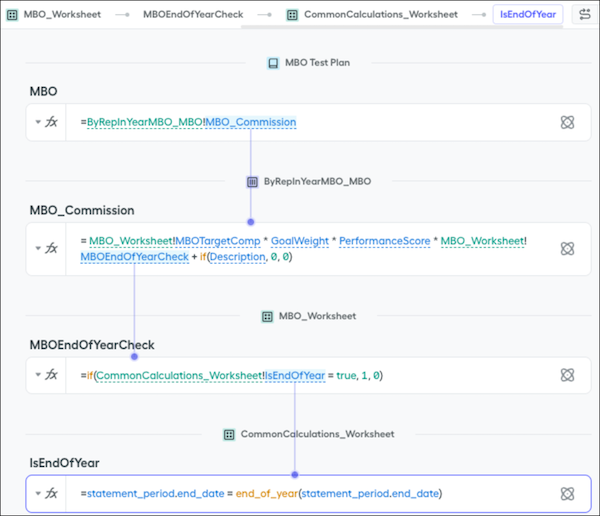
If you want the rule to pay commission only at the end of the year, add an end-of-year check to the formula and recalculate.
An end-of-year check multiplies the MBO commission by 0 for all statements except the last statement period of the year, where the commission is multiplied by 1.
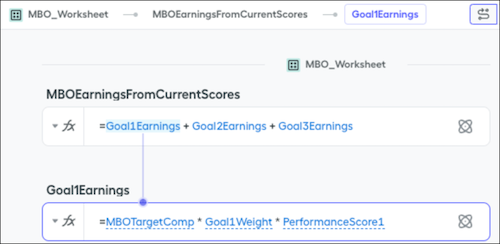
- To show a rep's current earnings by goal, create three worksheet calculations named Goal1Earnings, Goal2Earnings, and Goal3Earnings.
-
To add the earning calculations, create a MBO Earnings from Current Scores calculation.