
You are here:
Create a Team Attainment Rule for Managers
Show a team’s attainment to their manager. Empower managers to proactively drive their team’s sales performance and influence their own commissions.
Required Editions
| Available in: both Salesforce Classic (not available in all orgs) and Lightning Experience |
| Available in: Enterprise, Unlimited, and Developer Editions |
| Available for an additional cost in: Professional Edition with Web Services API Enabled |
| User Permissions Needed | |
|---|---|
| To create a team attainment rule: | A Spiff user role with this permission turned on. Designer Configuration: Manage |
-
Create data filters.
-
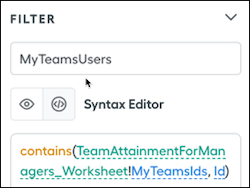
Create a MyTeamsUsers filter that returns the reps in a team.
contains(TeamAttainmentForManagers_Worksheet!MyTeamsIds, Id)The
MyTeamsIdsvalue is based on a worksheet calculation,=transform_list(RepsInTeam, Id).The
RepsInTeamvalue is based on a worksheet calculation,=users_in_team(single(direct_manager_of)).For Salesforce environments, the ID corresponds to the user ID. For other configurations, use the appropriate ID field for your User object.
-
Create an AllUsers filter that returns all users and retrieves the ID for the rep on the manager's team.
You can use any field on the User object for this filter, such as the Spiff_User__c field.
Spiff_User__c = true -
Create a ClosedInQtr_AllReps filter that returns deal attainment data for all users during the period.
Remember to exclude any ownership within your data filter.
InQuarter AND ClosedWon
-
Create a MyTeamsUsers filter that returns the reps in a team.
-
Create these datasheet calculations by using the MyTeamsUsers data filter on the User object.
-
Create a UserSum calculation that sums the total deals for the rep in the manager's team for the applicable period.
The
let()function returns the user ID of the rep and sums the deals closed in quarter by using the relevant amount field.=let(userID, Id, sum(filter(ClosedInQtr_AllReps, OwnerId = userId), Amount_USD)) -
Create a UserQuarterlyQuota calculation that returns the quota value for the rep on the manager's team.
The first calculation retrieves the user ID of the rep.
=sum(quotas(ThisUser, "QuarterlyQuota"), amount)The second calculation uses the ID to return the quota value.
=let(ThisUserId, Id, filter(AllUsers, Id = ThisUserId)) -
Create a TeamMemberAttainment calculation that returns the team member’s attainment by dividing UserSum by UserQuarterlyQuota.
=if(UserSum = 0, 0, UserSum / UserQuarterlyQuota)
-
Create a UserSum calculation that sums the total deals for the rep in the manager's team for the applicable period.
-
Create worksheet calculations that are appropriate for your needs. Consider these examples.
- A IsRepActiveInTeam calculation that determines whether a rep is active in the team.
=in_team?(choose(1, direct_manager_of), id, statement_period.edn_date) - A HasRepAchievedTarget calculation that checks whether the team member's attainment is greater than or equal to 100%.
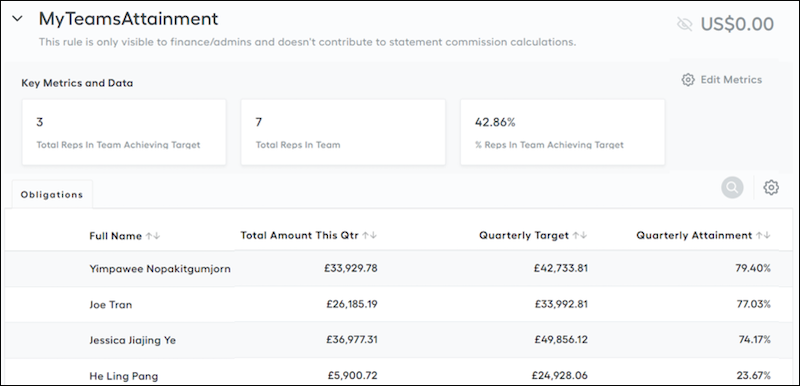
=MyTeamUsers_TeamAtainmentForManagers!TeamMemberAttainment >= 100% - The TeamAttainment calculation displays the percentage of reps on the team achieving their target.
=if(RepsAchievingTarget = 0, 0, RepsAchievingTarget / TotalRepsInTeam_EndofQtr)
- A IsRepActiveInTeam calculation that determines whether a rep is active in the team.
- Create a What-If? payout rule that uses any calculation from the data filter you created for the MyTeamsUser filter, and add the rule to a plan.
-
Showcase the calculations by adding them to a statement and updating all display names and formats.
Consider adding emoji to the statement for added visual appeal.
Did this article solve your issue?
Let us know so we can improve!
