
You are here:
Hide a Zero Payout Lump-Sum Rule
When a lump-sum rule has zero payout, you can hide the rule.
Required Editions
| Available in: both Salesforce Classic (not available in all orgs) and Lightning Experience |
| Available in: Enterprise, Unlimited, and Developer Editions |
| Available for an additional cost in: Professional Edition with Web Services API Enabled |
| User Permissions Needed | |
|---|---|
| To change a lump-sum rule to a line-by-line rule: | A Spiff user role with this permission turned on. Designer Configuration: Manage |
Maybe you want to hide zero payout lump-sum rules in these scenarios.
- A rep is fully ramped.
- Specific reps on a plan aren't receiving certain commission payouts.
- A statement is cluttered and you want to simplify the information that's shown.
For example, maybe you have a lump-sum rule that gives all reps a $50.00 payout in February, but the current statement period is January, so you don't want to show a line of $0.00 in the January statement.
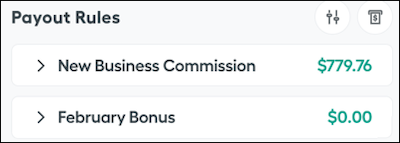
To avoid this scenario, convert the lump sum rule to a line-by-line rule. A line-by-line rule doesn't appear on statements when the rule's filter doesn't return any records for the statement period.
-
Find the lump-sum rule you want to change, and find its corresponding worksheet calculation.
For example, find the FebruaryBonus calculation.
=if(isFebruary, 50, 0)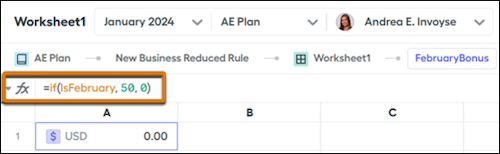
-
Create a worksheet calculation, FebBonusRep, that returns the rep's ID dynamically.
The worksheet field returns the current RepId or a blank string, depending on whether the payout is greater than 0. This example uses the
ZeroInCompanyCurrencyandRepIdhelper functions.=if(FebruaryBonus > ZeroInCompanyCurrency, RepId, "")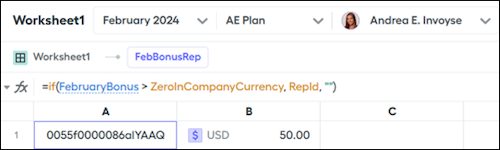
-
Create a data filter on the User object that returns the current rep’s row.
This data filter returns a maximum of one row, or returns no rows if the payment is zero.
- Create a datasheet, select the User object, and apply the new filter.
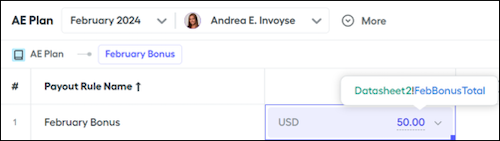
- Create a calculated field that references the original worksheet calculation that calculates the lump-sum amount for the original rule.
-
Change the lump-sum rule to a line-by-line rule by referencing the new field.
Did this article solve your issue?
Let us know so we can improve!
