
You are here:
Manage Statement Approvals Manually
In the Approvals table, you can send statement approval requests, review statement approval progress, and approve a statement.
Required Editions
| Available in: both Salesforce Classic (not available in all orgs) and Lightning Experience |
| Available in: Enterprise, Unlimited, and Developer Editions |
| Available for an additional cost in: Professional Edition with Web Services API Enabled |
| User Permissions Needed | |
|---|---|
| To edit statement approval settings: | A Spiff user role with this permission turned on. Approval Settings: Manage |
A statement approval freezes the corresponding statements for this period. If you unfreeze an approved statement, the approval is removed to preserve its integrity. Any calculations or amounts on the statement can change after recalculating.
- From the Admin menu, click Settings, and select Approvals.
-
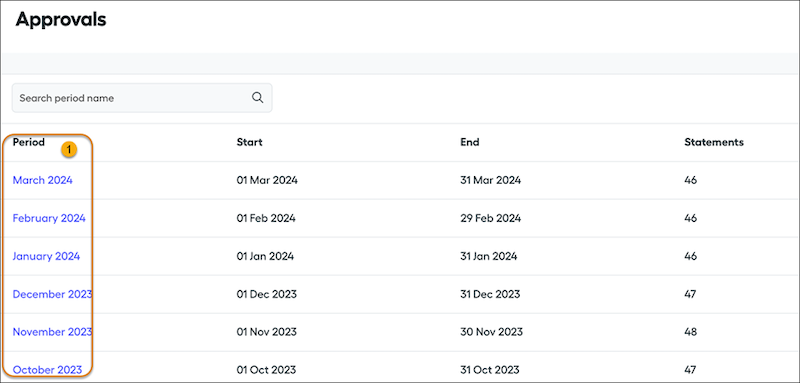
In the Approvals table, select a period (1).
-
In the period, select one or more users.
You can search for users by name or filter the list of users by plan or team. To approve a statement, the user you select must have one of these privileges. You can’t send statements to external users.
- The Company Admin default role
- The Finance default role
- A custom role with Statement Approvals: View and Statements: View permissions
- An active team lead assignment for the statement owner’s current team
- To send approval requests, click Send and select the approval route for the statements. In the popup, confirm the action.
Approvers receive a notification, depending on their notification settings, when it’s their turn to approve in the workflow.
To reset all approvals for the period, click the three dots on the main Approvals page. To reset individual statements within the approval table, select the rep and click Reset.

