
Loading
Sales Performance Management
Table of Contents
Select Filters

          No results
          No results
          Here are some search tips

          Check the spelling of your keywords.
          Use more general search terms.
          Select fewer filters to broaden your search.

          Search all of Salesforce Help
          Make Manual Adjustments and Manual Draws in Statements

          Make Manual Adjustments and Manual Draws in Statements

          Make manual adjustments or add draws to any rep statement. Both manual adjustments and draws don’t tie back to any specific opportunity and they don’t count towards quota attainment, and multiple adjustments/draws will display a single sum in reports. Manual adjustments and manual draws are best used for one-time, top-level adjustments to a commission statement total.
          Required Editions

          Available in: both Salesforce Classic (not available in all orgs) and Lightning Experience
          Available in: Enterprise, Unlimited, and Developer Editions
          Available for an additional cost in: Professional Edition with Web Services API Enabled
          User Permissions Needed
          To make an adjustment or draw:

          A Spiff user role with these permissions turned on.

          • Statement Adjustments: Edit
          • Statement Draws: Edit

          Making adjustments or draws doesn't cause a statement to recalculate. Adjustments made in one period aren't shown in another period. Each new period starts with an adjustment balance of 0. Manual draws function similar to manual adjustments, but with totals that carry forward to future statements.

          1. Navigate to the profile of the rep and access the commission's statement.
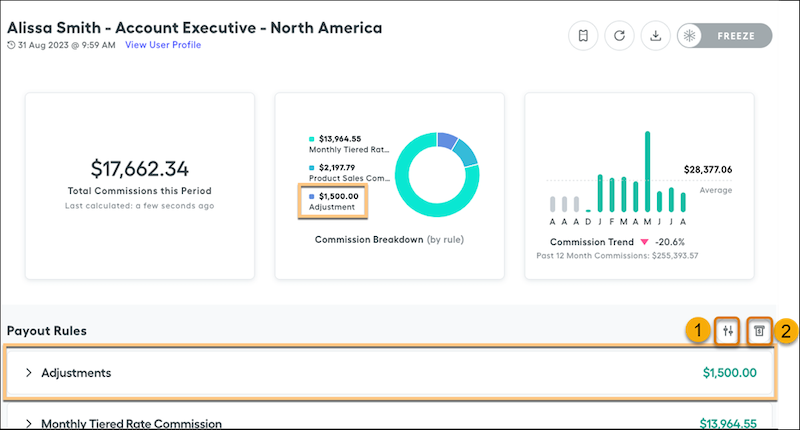
          2. To create an adjustment or a draw on the statement, click one of the icons located in the Payout Rules section.
            • Create an Adjustment (1)
            • Create a Draw (2)
          3. Enter the details of the manual adjustment or draw. The amount can be positive or negative.
          4. Save your changes.

          After you save the adjustment, it appears in its own category in the Payout Rules section. The adjustment also appears in the Commission Breakdown metric at the top of the statement.

          Make manual adjustments or draws to statements.

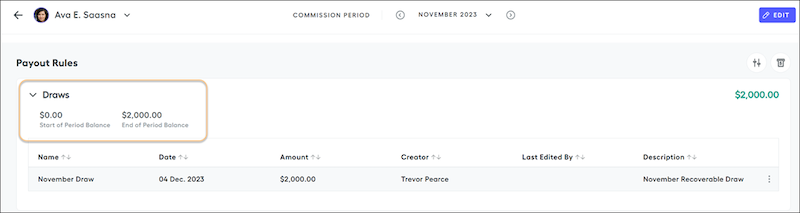
          Any positive or negative draw balance appears in the Draw section in successive periods. Additionally, when pulling draw data into a custom statement report, the end-of-period balance is always included in the report.

          Draws in a statement

          To delete an adjustment or draw, hover over it in the rule box. Click the three dots that appear and select Delete Permanently.

           
          Loading
          Salesforce Help | Article