Automatically Assign Plans and Quotas to Team Members
If teams in Salesforce Spiff share plans or if you want to add teams to the same quotas, turn on Automation for teams. Users are assigned to plans and quotas automatically when they're assigned to a team.
Required Editions
Available in: both Salesforce Classic (not available in all orgs) and Lightning
Experience
Available in: Enterprise, Unlimited, and Developer
Editions
Available for an additional cost in: Professional Edition with Web
Services API Enabled
User Permissions Needed
To turn on team automation:
A Spiff user role with these permissions turned on.
Teams: Manage
Users: Edit
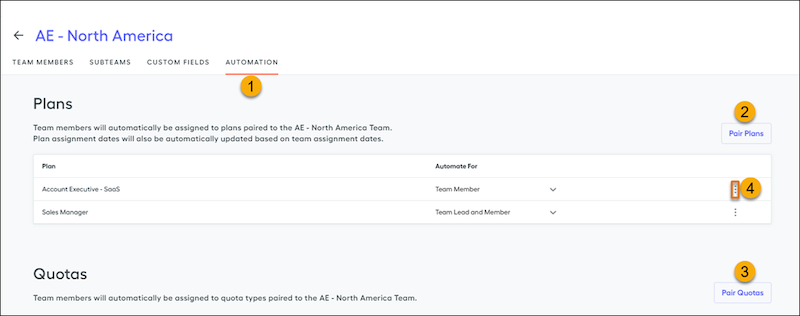
Select a team from the Teams page, and click Automation
(1).
Select Pair Your First Plan or Pair
Plans (2) to choose the plan you want the team to be paired
with. This allows you to automate the addition of team members and the team
leads, team members only, or team leads only. Save your selection.
If there are users already assigned to the team, you’re prompted to apply the
plan assignment to these users. If users on the team have already been assigned
to the paired plan at a previous date, choose Don't
Apply. Otherwise, duplication can occur.
Once you add team members with effective start dates to the team, these
team members are reflected on the plan effective dates automatically. Any
changes made to plan effective dates on the Plans page reset to the team
effective dates during the nightly sync.
In the Quotas section in Automation, click Pair Quotas
(3) and select whether paired quotas apply to team members or team leads.
Only the quota assignment is automated. Quota values must be inputted for each user manually.
To remove paired plans or quotas, hover over the three dots on the far right of
the visible plan or quota and select Remove (4).
Did this article solve your issue?
Let us know so we can improve!
Loading
Salesforce Help | Article
Cookie Consent Manager
General Information
Required Cookies
Functional Cookies
Advertising Cookies
General Information
We use three kinds of cookies on our websites: required, functional, and advertising. You can choose whether functional and advertising cookies apply. Click on the different cookie categories to find out more about each category and to change the default settings.
Privacy Statement
Required Cookies
Always Active
Required cookies are necessary for basic website functionality. Some examples include: session cookies needed to transmit the website, authentication cookies, and security cookies.
Functional Cookies
Functional cookies enhance functions, performance, and services on the website. Some examples include: cookies used to analyze site traffic, cookies used for market research, and cookies used to display advertising that is not directed to a particular individual.
Advertising Cookies
Advertising cookies track activity across websites in order to understand a viewer’s interests, and direct them specific marketing. Some examples include: cookies used for remarketing, or interest-based advertising.