
You are here:
Create a Team and Manage Team Members Manually in Salesforce Spiff
Create a team and assign team members from the Teams page in Salesforce Spiff. You can create team hierarchies by creating subteams. You can also assign users as team leads to allow them to view team member statements and easily enable rollouts.
Required Editions
| Available in: both Salesforce Classic (not available in all orgs) and Lightning Experience |
| Available in: Enterprise, Unlimited, and Developer Editions |
| Available for an additional cost in: Professional Edition with Web Services API Enabled |
| User Permissions Needed | |
|---|---|
| To create a team: | A Spiff user role with this permission turned on. Teams: Manage |
This topic describes assigning users directly to a team. You can also assign a specific user to a team in the user’s profile. For large-scale changes, use the upload functionality to add new team assignments, or update existing team assignments. See Bulk-Uploading Users, Plan and Team Assignments, Currency Rates, and Quotas for more information about mass data management.

-
Create a team.
- In the Teams page, click Add New Team and select Add New Team from the dropdown.
- Enter a name for the new team and click Create Team.
-
Add team members.
-
To add members to an existing team, select the team on the Teams
page.
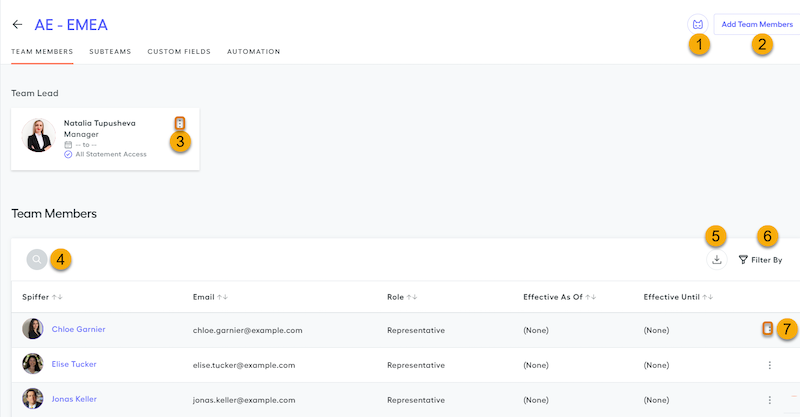
- Click Add Team Members (2).
- Search for the team members by name (4) or scroll through the list of users, and check the box next to their name. You can filter the displayed users by teams or by plans.
- To save the assignments, click Add Team Members.
-
To add members to an existing team, select the team on the Teams
page.
-
Assign a team lead.
- Select the team and click the team leader button (1).
- Select a user from the list and click Assign Team Leader.
- Optionally, edit the team leader assignment details (3) by selecting the assignment effective from and to dates or select Full or Partial statement access. If you select partial access, choose the plans whose statements the team lead can view.
- Save the changes.
- To filter the list of users to show only active users, click Filter By and select Active Users (6).
- To remove a user from a team, click the three dots in the row for the user (7) and select Remove.
- To download users as a .csv file, click the Download button (5).
-
Optionally, define custom fields for a team.
- In the Custom Fields page, click Add Custom Field.
- Enter a name for the custom field and a description, and then select the field type.
- Save the custom field.
