
You are here:
Upload a Team Using the Teams Template in Salesforce Spiff
When first setting up teams in Salesforce Spiff, you can upload team structures and create teams in bulk using the Teams template.
Required Editions
| Available in: both Salesforce Classic (not available in all orgs) and Lightning Experience |
| Available in: Enterprise, Unlimited, and Developer Editions |
| Available for an additional cost in: Professional Edition with Web Services API Enabled |
| User Permissions Needed | |
|---|---|
| To import teams: | A Spiff user role with these permissions turned on.
|
- Download the template:
- On the Teams page, click Add New Team and select Upload Multiple Teams.
- Download the template .xlsx file by clicking the Download the example file highlighted text on the instructions modal.
-
Edit the template.
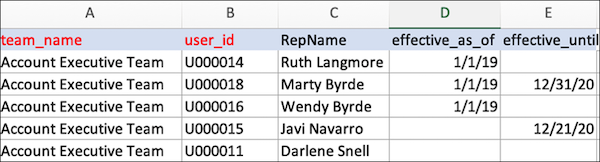
The example file contains three tabs: teams, team_managers, and team_members. On each tab, the red column headers are required fields. If you don’t have parent teams or don’t want to set Effective As Of or Effective Until dates for the team managers or team members, you don’t have to use these fields.
On the Teams page, the parent_team_name field exists in cases where the team you’re creating is a subteam of another team. The parent team also needs to exist in a separate row. The users’ External Id can be found by going to Admin | Users.
 Tip Click the Export button at the top right of the table to export the user list (which includes the External Ids). You can then do an index, match, or vlookup to create the teams upload.
To track the users you’re adding, you can insert an additional column for the rep's name. This won't affect the upload but can be easier to manage.
-
Upload the updated file.
-
Click Browse Your Computer to browse and drag your .xlsx
file to the bottom of the upload modal.
On the Teams page, you can see your teams with the correct users assigned.
-
Click Browse Your Computer to browse and drag your .xlsx
file to the bottom of the upload modal.
