
Loading
Salesforce now sends email only from verified domains. Read More
Sales Performance Management
Table of Contents
Select Filters

          No results
          No results
          Here are some search tips

          Check the spelling of your keywords.
          Use more general search terms.
          Select fewer filters to broaden your search.

          Search all of Salesforce Help
          Validate and Submit a Change Set in Salesforce Spiff

          Validate and Submit a Change Set in Salesforce Spiff

          Before submitting a change set to the production environment, validate the change set to check for potential issues that prevent Spiff from merging the changes. However, validating a change set doesn’t verify that the changes result in calculable commission statements. Before submitting your change set, select the necessary dependent items. If you don’t include the dependencies, calculation errors can occur. After you test your changes, submit the change set for approval and deployment.
          Required Editions

          Available in: both Salesforce Classic (not available in all orgs) and Lightning Experience
          Available in: Enterprise, Unlimited, and Developer Editions
          Available for an additional cost in: Professional Edition with Web Services API Enabled
          User Permissions Needed

          To validate and submit change sets in Salesforce Spiff:

          A Spiff user role with this permission turned on.

          Change Sets: View

          1. In the sandbox, click View Changes.
            This list shows the changes that you haven’t previously submitted in a change set.
          2. Click Validate.
            If the validation fails, the errors are summarized at the top of the page. Review the error messages in the data table next to the affected items. Correct the errors and revalidate the changes.
          3. To submit the changes to the parent environment, click Submit.
          4. Review the change set in the sandbox.
            1. In the sandbox, go to Admin and select Settings.
            2. Under Environments, select Outbound Change Sets.
            3. On each tab, review the change sets that you’ve validated, submitted to a parent environment, and deployed to a parent environment.
            4. To review the individual changed items in the change set, click any tab and then select the change set in the Name column.
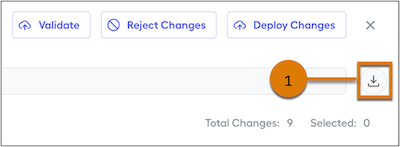
            5. To create a CSV file of all the changes in a change set, including test results, click Download (1).
              Spiff dashboard highlighting the Download CSV button
           
          Loading
          Salesforce Help | Article