
You are here:
Capture Trace View in Salesforce Spiff
Admins and reps in Salesforce Spiff can visualize how metrics, rule totals, and deal amounts are calculated in statements. In trace view, also called Capture Trace, users can click into a highlighted item and view more details. Tracing calculations in Spiff helps you debug calculations, test new calculations, provide transparency, or conduct an audit. Admins can turn off trace for some items in Designer.
Required Editions
| Available in: both Salesforce Classic (not available in all orgs) and Lightning Experience |
| Available in: Enterprise, Unlimited, and Developer Editions |
| Available for an additional cost in: Professional Edition with Web Services API Enabled |
Capture Trace in a Rule Metric
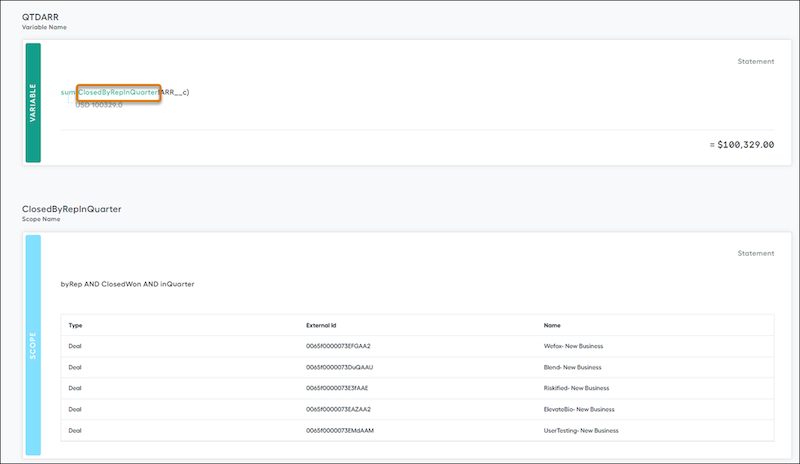
To trace the details of a rule metric in a statement, click the metric card. To trace further, click any item in green. For example, view details of the ClosedByRepInQuarter data filter in a metric.
Capture Trace in Line-by-Line Rule Calculations
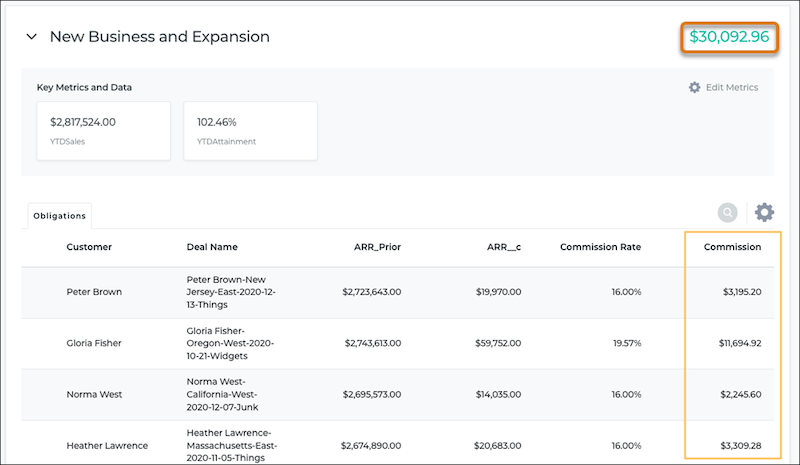
A rule can sum a total commission amount from individual deals that qualify. For example, the New Business and Expansion rule’s payout is the sum of commissions for individual deals that qualify for that rule. To view the trace for an individual deal that contributes to the total amount, click a record in the Obligations list.
Capture Trace in Lump-Sum Rule Calculations
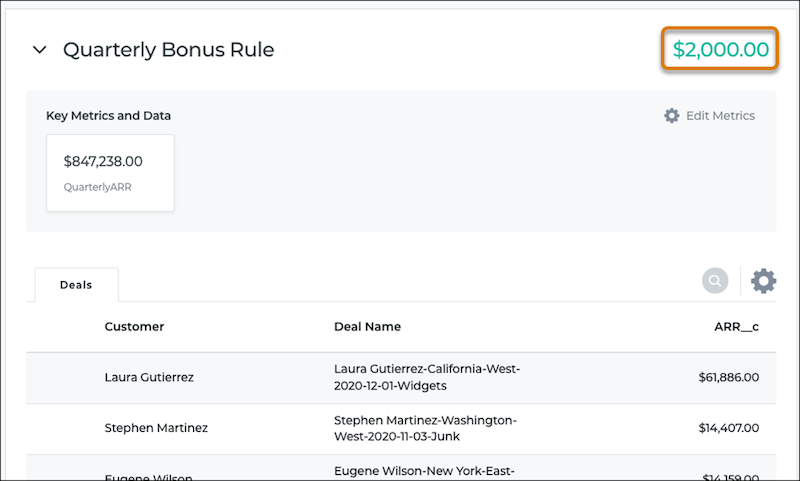
A rule can specify a lump sum that’s paid for a single qualifying event. For example, a rep earns a quarterly bonus for fulfilling a quota. To view the trace for the payout, click the rule’s total payout amount.
When to Turn Off Capture Trace
Turn off trace in these scenarios.
- When a rule exposes information that a rep isn’t supposed to access, such as a lookup table or range table that contains rates, quotas, or other information for plans that a user doesn’t belong to, turn off trace for the calculation.
- When Spiff takes too long to calculate a statement and shows errors, turn off trace for calculations that aren’t visible to reps.
- When a complex calculation is using a significant amount of memory, turn off trace for lower-level calculations that aren’t visible to users. For example, turn off trace for accumulated variables, which are often used in marginal payout scenarios where Salesforce Spiff sums a specific value or field over a defined set of records. Or, turn off trace for year-to-date or quarter-to-date calculations that involve a significant number of records. You can show the output of these calculations on a statement, but you prevent reps from the complicated internal calculations.
Impact of Turning Off Capture Trace
When you turn off Capture Trace for a field, the field isn’t available in these locations.
- The Obligations view of a statement
- Statement exports
- Spiff reports
- Spiff report exports
- Expense reports
If the field where Capture Trace is turned off references other fields, the referenced fields aren’t available in these locations, either.
If other fields reference the field where Capture Trace is turned off, the other fields remain available in these locations. Only the field where Capture Trace is turned off isn’t available.
When Capture Trace Isn’t Available
In some cases, calculations are interrupted and trace isn’t available.
- When you overwrite a calculation in a statement, the original calculation is replaced by the amount that you manually entered and is no longer available for trace.
- When a line-by-line rule has no results for the current statement period, no records are included in the statement and no trace is available. For a workaround, contact Salesforce Customer Support.
- When you add a metric or field calculation to a statement that’s frozen, the calculations aren’t included in the statement’s trace.
- When you use
if()functions, trace is available only for the return value. Other possible results aren’t traced. To work around this limitation, structure anif()function to return1or0and then multiply that result by the variable to calculate. With this approach, theif()function’s result is always traceable and shown in metric cards or statement fields.
