Users don’t need to be invited through this process if your organization uses SSO.
Access to Salesforce Spiff is controlled through the SSO provider.
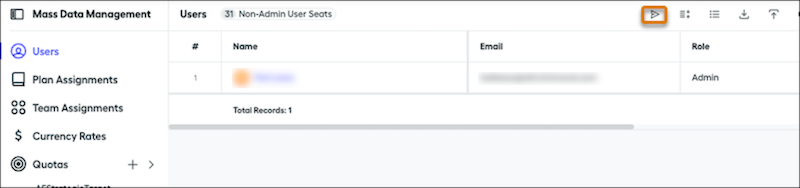
From the Admin menu, select Users.
Select one or more users you want to invite. Alternatively, click and drag to
select a group of users.
Click the Send Invite icon to dispatch invitations to the selected users.
The invited users receive an email with a link to create a password. This link is valid only for the first login and can’t be used for subsequent logins or
password resets. Users have 30 days to activate their account
by setting up their password.
We use three kinds of cookies on our websites: required, functional, and advertising. You can choose whether functional and advertising cookies apply. Click on the different cookie categories to find out more about each category and to change the default settings.
Privacy Statement
Required Cookies
Always Active
Required cookies are necessary for basic website functionality. Some examples include: session cookies needed to transmit the website, authentication cookies, and security cookies.
Functional Cookies
Functional cookies enhance functions, performance, and services on the website. Some examples include: cookies used to analyze site traffic, cookies used for market research, and cookies used to display advertising that is not directed to a particular individual.
Advertising Cookies
Advertising cookies track activity across websites in order to understand a viewer’s interests, and direct them specific marketing. Some examples include: cookies used for remarketing, or interest-based advertising.