You are here:
User Roles and Permissions in Salesforce Spiff
Give users the appropriate level of access so they can be successful in Salesforce Spiff, and enforce the principle of least privilege. Assign a default role to each user, or create custom roles with access to specific Spiff functionality.
Required Editions
| Available in: both Salesforce Classic (not available in all orgs) and Lightning Experience |
| Available in: Enterprise, Unlimited, and Developer Editions |
| Available for an additional cost in: Professional Edition with Web Services API Enabled |
Default Roles
Spiff provides these default roles for users.
| Role | API Name | Users Can... |
|---|---|---|
| Company Admin | company_admin | Access all functionality in Spiff. |
| Finance | finance | View and edit most incentive compensation records such as reports, statements, quotas, documents, approvals, and overwrites. The user can access Designer, but has limited editing permission for admin settings and connectors. |
| Editing Manager | editing_manager | View most data sources, reports, statements, documents, approvals, and overwrites. But, they can’t access Designer and they have other limited editing permissions. |
| Manager | manager | View most reports, statements, quotas, documents, and approvals. But, they can’t access Designer and they have limited editing permissions. |
| Representative | representative | View basic incentive compensation records such as statements, quotas, documents, and approvals. But, they can’t access Designer and they can edit comments only. |
| IT Support | it_support | Manage single sign-on (SSO), OAuth integrations, and connectors. But, they have limited view permission for most other records in Spiff. They can’t access Designer. |
| Deactivated | deactivated | Not access any functionality in Spiff, but Spiff still generates and calculates statements until their team assignment's Effective Until date expires. See Team Management in Salesforce Spiff. |
To view the specific permissions included in each default role, select a role from the Role Management page in the Admin menu. This page is available only to users with one of these privileges.
- The default Company Admin role
- A custom role with the Users: Edit permission turned on
This page also shows the number of users assigned to each role, who created or updated each role, and when each role was last modified.
If you import user records, specify the API name of a default role for each user in the record upload template. You can’t specify a custom role when you import user records. See Import Users in Salesforce Spiff Manually.
Manager Role versus Team Lead
Team lead isn’t a unique role in Spiff. You can assign any Spiff role as a lead from the Teams page. A user with the manager role doesn’t have to be a team lead.
A team lead can create rollup opportunities, which filter deals for all reps on the same team as the team lead. You can create commission rules that use rollup filters for giving a team lead a percentage of their team’s performance.
A team lead can see this data for team members.
- Statements, with the ability to trace, make comments, and export and other optional restrictions
- Documents signed through Spiff
- Tickets, with the ability to resolve
- Quotas
The manager role grants access to shared reports, standard reports, and shared reporting dashboards. Managers can see reporting statistics for other reps only if they have visibility into those statements. Manager visibility depends on team lead status, not the manager role.
Custom Roles
To assign a role with a custom mix of permissions, create a custom role using a default role as a starting point. See Create a Custom Role in Salesforce Spiff.
Custom roles have these limitations.
- You can’t delete a custom role.
- After you create a custom role, wait up to two minutes before you can assign the new role to a user. After you edit a custom role that’s assigned to a user, wait up to two minutes before the user’s account reflects the changed permissions.
- When you import user records from another source, you can specify custom roles when you import users manually, upload users with the object API, or sync user records with a webhook. If you use the Salesforce connector to import users, all users have the default Representative role assigned. You can later update roles manually from the Role Management page.
Non-Admin User Seats
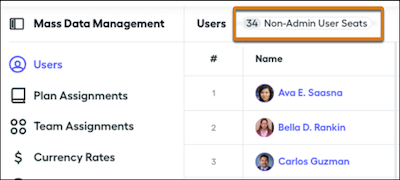
From the Admin menu, the Users page shows the number of non-admin user seats, which are licensed users who don’t have Spiff admin privileges. This number is calculated by counting the unique users with active plan assignments and who have statements generated during the current statement period. For example, if ten statements are generated during the month but those statements belong to five unique users, the number of non-admin user seats is five.